
Premium Payment: Difference between revisions
No edit summary Tag: Manual revert |
|||
| (43 intermediate revisions by the same user not shown) | |||
| Line 1: | Line 1: | ||
{{Nav-hub Agent}} | {{Nav-hub Agent}} | ||
'''''This page only addresses the immediate payment method provided by [[Equinox]].''''' <br> | |||
Payments submitted through other methods, like paper checks, must be addressed by the carrier directly. | |||
{{Attention|'''No additional fees''' are added to premium payments.}} | |||
Premium payments are easy to make in Equinox, and they can be initiated a number of ways. | Premium payments are easy to make in Equinox, and they can be initiated a number of ways. | ||
* '''[[Pay NFIP New Business]]''' - submit payment for a completed NFIP application | * '''[[Pay NFIP New Business]]''' - submit payment for a completed NFIP application | ||
* '''[[Pay NFIP Renewal]]''' - provide payment to renew an upcoming NFIP policy term | * '''[[Pay NFIP Renewal]]''' - provide payment to renew an upcoming NFIP policy term | ||
* '''[[Pay NFIP Policy Change]]''' - make additional premium payments for NFIP policy changes | * '''[[Pay NFIP Policy Change]]''' - make additional premium payments for NFIP policy changes | ||
== How to Submit Premium Payments == | == How to Submit Premium Payments == | ||
All procedures that offer premium payment lead to the same dialog page. The required fields must be completed in order to submit using the "Pay Now" button.<br> | |||
''This process is different for policyholders who make a payment through the [[Consumer Portal]].'' | ''This process is different for policyholders who make a payment through the [[Consumer Portal]].'' | ||
=== Credit Card or E-check === | |||
Payments can be made using a '''credit card''' or an '''electronic check''' (e-check or echeck).<br> | |||
Select the corresponding box for each at the top of the screen. This will adjust the form fields below. | |||
<gallery mode="packed" heights=300px style="text-align:left"> | |||
Img-proc-pay-dialog-card.png|'''Credit card''' option. <br>Required fields are outlined in red. | |||
Img-proc-pay-dialog-echeck.png|'''Electronic check''' option. <br>Required fields are outlined in red. | |||
</gallery> | |||
{{box-summary | |||
|color = yellow | |||
|title = Important | |||
|text = Electronic checks require the '''account number''' to be entered '''twice'''. <br> | |||
Use this [https://www.wikihow.com/Locate-a-Check-Routing-Number WikiHow article] to locate it correctly on a check. | |||
}} | |||
=== Billing Information === | |||
Billing information refers to the type of account, not the method of payment. <br> | |||
Choose between '''Personal Account''' (default) or '''Business Account'''. | |||
* Enter the individual named on the account. | |||
* The pre-filled address can be edited. | |||
<gallery mode="packed" heights="300px" style="text-align:left"> | <gallery mode="packed" heights="300px" style="text-align:left"> | ||
Img-proc-pay-dialog-card.png| | Img-proc-pay-dialog-card-filled.png|Billing information is prefilled. | ||
</gallery> | </gallery> | ||
=== Summary === | |||
The Summary section on the right identifies the policy number, the policyholder, and the insured address. <br> | |||
The total premium amount will show under the itemized fees; discounts are not listed. | |||
<gallery mode="packed | <gallery mode="packed" heights="300px" style="text-align:left"> | ||
Img-proc-pay-dialog-change.png|Policy changes allow the user to cancel and return to the policy | Img-proc-pay-dialog-change.png|Policy changes allow the user to cancel and return to the policy | ||
</gallery> | </gallery> | ||
==== New Business/Renewal Disclaimer ==== | |||
<blockquote> | |||
By clicking on ‘Pay Now’, I confirm that I have reviewed and agree to the Terms and Conditions of the insurance policy provided by . I authorize to charge the payment of <AMOUNT> to the Card payment method I have provided, and I acknowledge that my policy will be activated upon successful payment. Please ensure all information is accurate before proceeding. | |||
</blockquote> | |||
==== Policy Change Disclaimer ==== | |||
<blockquote> | |||
By clicking on ‘Pay Now’, I confirm that I have reviewed and agree to the Terms and Conditions of the <CARRIER NAME> insurance policy provided by <CARRIER NAME>. I authorize <CARRIER NAME> to charge the payment of $39.00 to the Card payment method I have provided, and I acknowledge that my policy will be activated upon successful payment. Please ensure all information is accurate before proceeding. | |||
</blockquote> | |||
{{needsedit}} | |||
Latest revision as of 16:06, 5 March 2025
This page only addresses the immediate payment method provided by Equinox.
Payments submitted through other methods, like paper checks, must be addressed by the carrier directly.
Premium payments are easy to make in Equinox, and they can be initiated a number of ways.
- Pay NFIP New Business - submit payment for a completed NFIP application
- Pay NFIP Renewal - provide payment to renew an upcoming NFIP policy term
- Pay NFIP Policy Change - make additional premium payments for NFIP policy changes
How to Submit Premium Payments
All procedures that offer premium payment lead to the same dialog page. The required fields must be completed in order to submit using the "Pay Now" button.
This process is different for policyholders who make a payment through the Consumer Portal.
Credit Card or E-check
Payments can be made using a credit card or an electronic check (e-check or echeck).
Select the corresponding box for each at the top of the screen. This will adjust the form fields below.
-
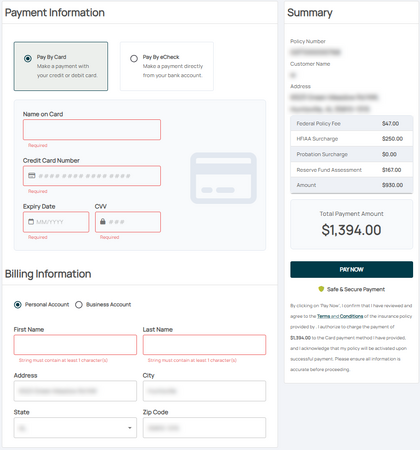 Credit card option.
Required fields are outlined in red. -
 Electronic check option.
Required fields are outlined in red.


| Important |
Electronic checks require the account number to be entered twice.
Use this WikiHow article to locate it correctly on a check. |
Billing Information
Billing information refers to the type of account, not the method of payment.
Choose between Personal Account (default) or Business Account.
- Enter the individual named on the account.
- The pre-filled address can be edited.
-
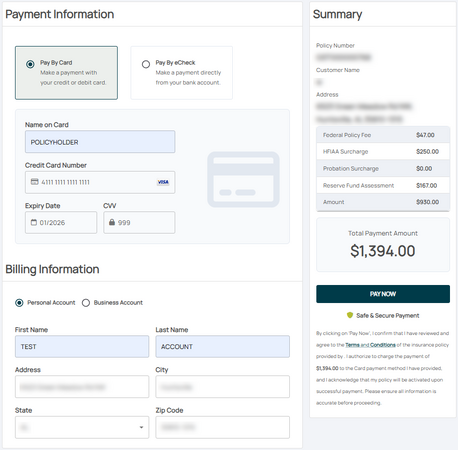 Billing information is prefilled.

Summary
The Summary section on the right identifies the policy number, the policyholder, and the insured address.
The total premium amount will show under the itemized fees; discounts are not listed.
-
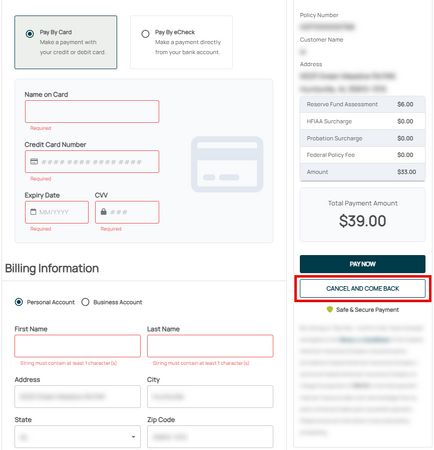 Policy changes allow the user to cancel and return to the policy

New Business/Renewal Disclaimer
By clicking on ‘Pay Now’, I confirm that I have reviewed and agree to the Terms and Conditions of the insurance policy provided by . I authorize to charge the payment of <AMOUNT> to the Card payment method I have provided, and I acknowledge that my policy will be activated upon successful payment. Please ensure all information is accurate before proceeding.
Policy Change Disclaimer
By clicking on ‘Pay Now’, I confirm that I have reviewed and agree to the Terms and Conditions of the <CARRIER NAME> insurance policy provided by <CARRIER NAME>. I authorize <CARRIER NAME> to charge the payment of $39.00 to the Card payment method I have provided, and I acknowledge that my policy will be activated upon successful payment. Please ensure all information is accurate before proceeding.
