
Agency Workspace: Difference between revisions
No edit summary |
No edit summary |
||
| (18 intermediate revisions by the same user not shown) | |||
| Line 1: | Line 1: | ||
{{ | {{Nav-hub Agent}} | ||
[[File:Img-eq-workspace-agt.png|link=|500px|right|frame]] | |||
The '''[[Agency Workspace]]''' provides an immediate overview of an agency's policy processing workflow. Queues are arranged vertically that align with the policy lifecycle, starting with quotes and applications at the top. | |||
Each queue shows the number of policies, along with other important details like due dates. A user to choose "View All" to review the items in each queue and access a '''[[Policy Record]]''' with a simple click. | |||
A user can navigate to the Agency Workspace from the left sidebar. | |||
{{clear}} | |||
== Saved Quotes and Applications == | == Saved Quotes and Applications == | ||
* The | * The '''Saved Quotes and Applications Queue''' provides access to quotes or applications that have not been submitted yet. | ||
* Agents can | * Agents can return to quotes that they started without the need to remember specific details for the '''Search bar'''. | ||
If an application is mailed with premium, it is removed from the queue once received. Applications submitted electronically or with premium are either: | If an application is mailed with premium, it is removed from the queue once received. Applications submitted electronically or with premium are either: | ||
# Automatically issued based on system rules. | # Automatically issued based on system rules. | ||
# Routed to the | # Routed to the '''Pending Transactions Queue''' for manual review. | ||
== Pending Transactions == | == Pending Transactions == | ||
The | The '''Pending Transactions Queue''' displays policies that are being reviewed by Underwriting, and can include policies with all transactions. | ||
* | * '''Next Upcoming Due Date''': Indicates the deadline for agent-provided information. | ||
* | * '''Oldest Submitted Transaction''': Highlights the oldest unissued submission to monitor timeliness. | ||
Policies can be filtered and sorted to show specific listings, such as those needing additional documentation, more premium, or cancellation. They will be marked with easily identifiable '''flags'''. | |||
{{img-proc-free | |||
| file = Img-proc-pay-pending-q-change.png | |||
| size = 600px | |||
| caption = A policy in the Pending Transactions queue with "Pending Change" and "Pending Payment" flags. | |||
}} | |||
== Pending Renewal Payment == | == Pending Renewal Payment == | ||
The | The '''Pending Renewal Payment Queue''' lists all billed policies (including rollover transfers) awaiting payment. By selecting '''View All''', agents can: | ||
* Review policies. | * Review policies. | ||
* Accept electronic payments. | * Accept electronic payments. | ||
| Line 62: | Line 36: | ||
== Expired Policies == | == Expired Policies == | ||
To assist with retention, the | To assist with retention, the '''Expired Policies Queue''' displays expired policies within a 30-day window (expiration date + 29 days). Agents can: | ||
* Follow up with insureds to prevent coverage lapses. | * Follow up with insureds to prevent coverage lapses. | ||
* Accept real-time electronic payments to renew coverage before the policy is removed from the queue. | * Accept real-time electronic payments to renew coverage before the policy is removed from the queue. | ||
| Line 69: | Line 43: | ||
== Non-Renewals == | == Non-Renewals == | ||
The | The '''Non-Renewals Queue''' includes policies that have been flagged for non-renewal. If the bill has not been created, then it will not be created while the policy has non-renewal status. If the bill has already been created and mailed, non-renewal will not allow premium payment to auto-issue the policy. NFIP policies can be non-renewed for a number of reasons, including: | ||
* Community suspensions | * Community suspensions | ||
* Unreformed provisional ratings. | * Unreformed provisional ratings | ||
* Agent or insured request | |||
If premium is not received, or received and not applied, then the policy will eventually lapse and coverage will cease. | |||
== Newly Issued Transactions == | == Newly Issued Transactions == | ||
The | The '''Newly Issued Transactions Queue''' shows policies issued, changed, canceled, or renewed within the last 30 days. Selecting '''View All''' provides access to recent transactions, helping agents address queries efficiently. | ||
== Additional Features == | == Additional Features == | ||
* The | * The '''Right-Hand Sidebar''' displays Bulletins and Notifications to keep agents informed of updates, new requirements, and system enhancements. | ||
* The | * The '''Search Bar''' offers universal access to all system records, regardless of their status. | ||
__NOEDITSECTION__ | |||
[[Category:Equinox]] | [[Category:Equinox]] | ||
Latest revision as of 16:12, 6 March 2025
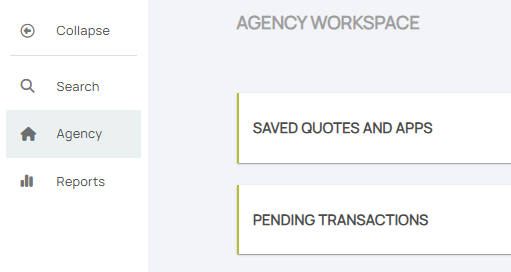
The Agency Workspace provides an immediate overview of an agency's policy processing workflow. Queues are arranged vertically that align with the policy lifecycle, starting with quotes and applications at the top.
Each queue shows the number of policies, along with other important details like due dates. A user to choose "View All" to review the items in each queue and access a Policy Record with a simple click.
A user can navigate to the Agency Workspace from the left sidebar.
Saved Quotes and Applications
- The Saved Quotes and Applications Queue provides access to quotes or applications that have not been submitted yet.
- Agents can return to quotes that they started without the need to remember specific details for the Search bar.
If an application is mailed with premium, it is removed from the queue once received. Applications submitted electronically or with premium are either:
- Automatically issued based on system rules.
- Routed to the Pending Transactions Queue for manual review.
Pending Transactions
The Pending Transactions Queue displays policies that are being reviewed by Underwriting, and can include policies with all transactions.
- Next Upcoming Due Date: Indicates the deadline for agent-provided information.
- Oldest Submitted Transaction: Highlights the oldest unissued submission to monitor timeliness.
Policies can be filtered and sorted to show specific listings, such as those needing additional documentation, more premium, or cancellation. They will be marked with easily identifiable flags.

Pending Renewal Payment
The Pending Renewal Payment Queue lists all billed policies (including rollover transfers) awaiting payment. By selecting View All, agents can:
- Review policies.
- Accept electronic payments.
- Generate renewal declarations pages immediately after payment.
Expired Policies
To assist with retention, the Expired Policies Queue displays expired policies within a 30-day window (expiration date + 29 days). Agents can:
- Follow up with insureds to prevent coverage lapses.
- Accept real-time electronic payments to renew coverage before the policy is removed from the queue.
After 30 days, the policy can no longer be renewed, requiring a new application, current rates, and applicable waiting periods.
Non-Renewals
The Non-Renewals Queue includes policies that have been flagged for non-renewal. If the bill has not been created, then it will not be created while the policy has non-renewal status. If the bill has already been created and mailed, non-renewal will not allow premium payment to auto-issue the policy. NFIP policies can be non-renewed for a number of reasons, including:
- Community suspensions
- Unreformed provisional ratings
- Agent or insured request
If premium is not received, or received and not applied, then the policy will eventually lapse and coverage will cease.
Newly Issued Transactions
The Newly Issued Transactions Queue shows policies issued, changed, canceled, or renewed within the last 30 days. Selecting View All provides access to recent transactions, helping agents address queries efficiently.
Additional Features
- The Right-Hand Sidebar displays Bulletins and Notifications to keep agents informed of updates, new requirements, and system enhancements.
- The Search Bar offers universal access to all system records, regardless of their status.