
Policy Record: Difference between revisions
No edit summary |
No edit summary |
||
| (37 intermediate revisions by the same user not shown) | |||
| Line 1: | Line 1: | ||
{{ | {{Nav-hub Agent}} | ||
The Policy Record page in the Equinox platform serves as the central hub for accessing and managing detailed policy information. It is organized into five collapsible sections, each providing specific insights and tools for effective policy management. | |||
Selecting a policy record within any of the queues provides the full record of transactions related to a policy, including prior terms and versions. The record shows the current term and the current version when it is first issued. | |||
* '''Collapsible Sections''': Each section can be expanded or collapsed for streamlined navigation. | |||
* '''Search Functionality''': Locate specific policies using the global search bar available across all pages. | |||
* '''Integrated Actions''': Direct access to tools and features like editing policy details or submitting claims. | |||
{{img-proc-nofrm|file = File:Img-eq-page-layout.png}} | |||
== 1. Workspaces Sidebar == | |||
The Workspaces Sidebar provides quick navigation to different workspaces, allowing users to switch between key areas like Underwriting, Claims, and Policy Management. If linking to a centralized '''Workspaces''' page is feasible, it could improve usability by consolidating workspace descriptions and functions in one place. | |||
== 2. Search Bar == | |||
== | The '''Search Bar''' is a powerful tool for quickly locating policies, claims, or customer information. Users can search by policy number, insured name, or property address. Describing its functionality would be beneficial for new users, ensuring they can effectively utilize this feature to streamline their workflows. | ||
== 3. Policy Summary == | |||
The '''Policy Summary''' section provides an overview of the policy's key details, including the insured’s name, property address, and policy number. It serves as a quick reference point for understanding the policy’s basic attributes at a glance. | |||
== 4. Policy Term/Version == | |||
This section displays the current policy term and version, with dropdown menus to access historical data: | |||
* '''Policy Term Dropdown''': Shows all prior terms of the policy. | |||
* '''Version Dropdown''': Lists all policy actions within a selected term. | |||
Users, including Agents and Underwriters/Customer Service Representatives, can select a specific term and version to view the policy record exactly as it appeared during that transaction. This feature is essential for tracking changes and understanding historical policy details. | |||
== 5. Policy Tabs == | |||
=== Policy Record Tab === | |||
The '''Policy Record Tab''' is the central hub for accessing and managing a policy's information. It consolidates all policy-related actions and details, allowing users to view or update data efficiently. | |||
=== Billing and Payment Tab === | |||
The '''Billing and Payment Tab''' organizes information about policy premiums, payment history, and billing schedules. It includes tools for processing payments or resolving payment discrepancies. | |||
=== Claims Tab === | |||
The '''Claims Tab''' lists all claims associated with the policy, including their statuses, dates, and summaries. Users can access detailed claim records or initiate new claims directly from this tab. | |||
== 6. Status Flags == | |||
'''Status Flags''' are visual indicators at the top of the policy record that highlight critical information, such as pending tasks, system alerts, or flagged issues. These flags ensure that users can quickly identify and address important items. | |||
== 7. Errors and Warnings == | |||
The '''Errors and Warnings''' section displays system-generated alerts for policy issues that require resolution. Examples include missing documentation, premium discrepancies, or policy actions awaiting approval. Users can prioritize these items to maintain compliance and streamline processing. | |||
== 8. Policy Details == | |||
=== General Information === | |||
This section is open by default. It contains the following sections: | |||
* Policy Overview (no title) | |||
* Agency Information | |||
* Policyholder | |||
* Mortgagees | |||
* Additional Interests | |||
=== Coverages, Deductibles and Discounts === | |||
This section has all the financial calculations, including total coverage limits, fees, and discounts. | |||
* Coverages and Deductibles | |||
* Statutory Discounts | |||
* Fees and Surcharges | |||
* Adjusted Annual Premium | |||
=== Risk Characteristics === | |||
This section contains all the recorded structural variables that are used by the NFIP Rating Engine to provide a rate. | |||
* Dwelling | |||
* Elevation Certificate | |||
=== Prior Claims === | |||
The NFIP tracks prior claims as a rating factor. Any prior flood claims that are identified as a rating factor are listed here. | |||
== 9. Policy Actions == | |||
The '''Policy Actions''' section allows users to perform key tasks, such as processing endorsements, updating policyholder information, or initiating cancellations. Each action is tracked and recorded in the '''Activity Log''' for transparency. | |||
== 10. Activity Log & Documents == | |||
=== Activity Log === | === Activity Log === | ||
* Contains a secure log of all policy-related changes, including timestamps and user actions. | |||
* Captures both system-generated entries and manual updates by Agents or Underwriters. | |||
== Documents == | * Displays the entire transaction history from the policy’s creation through its lifecycle. | ||
=== Documents === | |||
* Provides a repository for all documents related to the policy, including declarations, correspondence, and endorsements. | |||
* Users can view all system-generated or manually uploaded documents by clicking on the '''Documents''' header. | |||
* A plus sign at the bottom of the '''Documents''' section allows users to upload new files directly to the policy. | |||
These features ensure full traceability and secure storage of policy-related actions and documentation. | |||
[[Category:Equinox]] | [[Category:Equinox]] | ||
__NOEDITSECTION__ | |||
Latest revision as of 08:58, 4 March 2025
The Policy Record page in the Equinox platform serves as the central hub for accessing and managing detailed policy information. It is organized into five collapsible sections, each providing specific insights and tools for effective policy management.
Selecting a policy record within any of the queues provides the full record of transactions related to a policy, including prior terms and versions. The record shows the current term and the current version when it is first issued.
- Collapsible Sections: Each section can be expanded or collapsed for streamlined navigation.
- Search Functionality: Locate specific policies using the global search bar available across all pages.
- Integrated Actions: Direct access to tools and features like editing policy details or submitting claims.
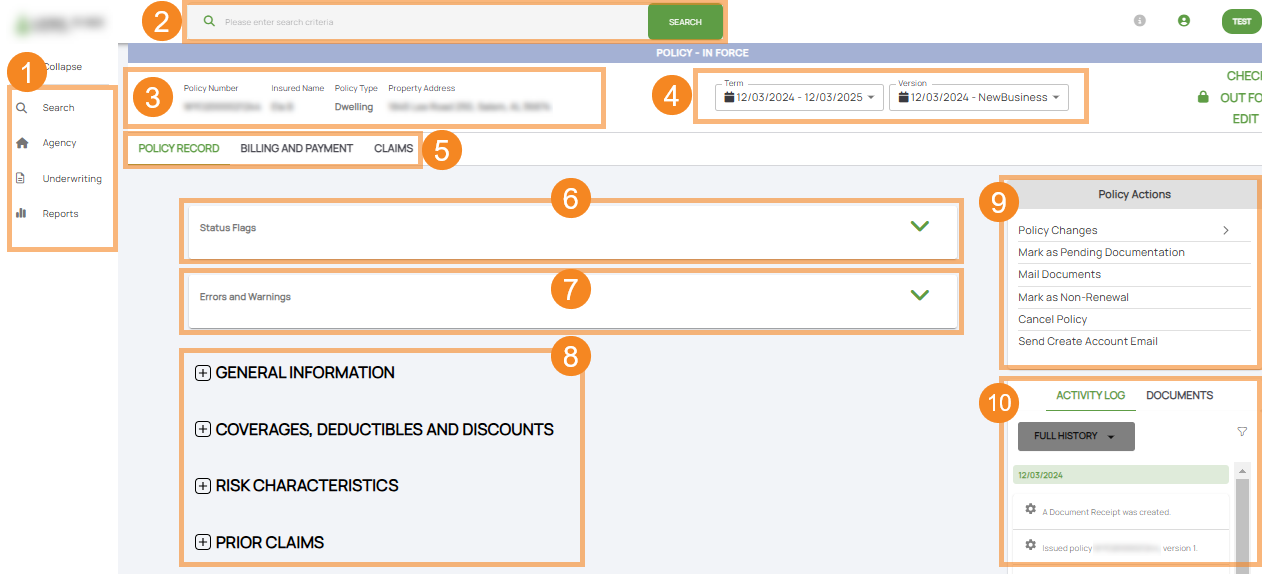
1. Workspaces Sidebar
The Workspaces Sidebar provides quick navigation to different workspaces, allowing users to switch between key areas like Underwriting, Claims, and Policy Management. If linking to a centralized Workspaces page is feasible, it could improve usability by consolidating workspace descriptions and functions in one place.
2. Search Bar
The Search Bar is a powerful tool for quickly locating policies, claims, or customer information. Users can search by policy number, insured name, or property address. Describing its functionality would be beneficial for new users, ensuring they can effectively utilize this feature to streamline their workflows.
3. Policy Summary
The Policy Summary section provides an overview of the policy's key details, including the insured’s name, property address, and policy number. It serves as a quick reference point for understanding the policy’s basic attributes at a glance.
4. Policy Term/Version
This section displays the current policy term and version, with dropdown menus to access historical data:
- Policy Term Dropdown: Shows all prior terms of the policy.
- Version Dropdown: Lists all policy actions within a selected term.
Users, including Agents and Underwriters/Customer Service Representatives, can select a specific term and version to view the policy record exactly as it appeared during that transaction. This feature is essential for tracking changes and understanding historical policy details.
5. Policy Tabs
Policy Record Tab
The Policy Record Tab is the central hub for accessing and managing a policy's information. It consolidates all policy-related actions and details, allowing users to view or update data efficiently.
Billing and Payment Tab
The Billing and Payment Tab organizes information about policy premiums, payment history, and billing schedules. It includes tools for processing payments or resolving payment discrepancies.
Claims Tab
The Claims Tab lists all claims associated with the policy, including their statuses, dates, and summaries. Users can access detailed claim records or initiate new claims directly from this tab.
6. Status Flags
Status Flags are visual indicators at the top of the policy record that highlight critical information, such as pending tasks, system alerts, or flagged issues. These flags ensure that users can quickly identify and address important items.
7. Errors and Warnings
The Errors and Warnings section displays system-generated alerts for policy issues that require resolution. Examples include missing documentation, premium discrepancies, or policy actions awaiting approval. Users can prioritize these items to maintain compliance and streamline processing.
8. Policy Details
General Information
This section is open by default. It contains the following sections:
- Policy Overview (no title)
- Agency Information
- Policyholder
- Mortgagees
- Additional Interests
Coverages, Deductibles and Discounts
This section has all the financial calculations, including total coverage limits, fees, and discounts.
- Coverages and Deductibles
- Statutory Discounts
- Fees and Surcharges
- Adjusted Annual Premium
Risk Characteristics
This section contains all the recorded structural variables that are used by the NFIP Rating Engine to provide a rate.
- Dwelling
- Elevation Certificate
Prior Claims
The NFIP tracks prior claims as a rating factor. Any prior flood claims that are identified as a rating factor are listed here.
9. Policy Actions
The Policy Actions section allows users to perform key tasks, such as processing endorsements, updating policyholder information, or initiating cancellations. Each action is tracked and recorded in the Activity Log for transparency.
10. Activity Log & Documents
Activity Log
- Contains a secure log of all policy-related changes, including timestamps and user actions.
- Captures both system-generated entries and manual updates by Agents or Underwriters.
- Displays the entire transaction history from the policy’s creation through its lifecycle.
Documents
- Provides a repository for all documents related to the policy, including declarations, correspondence, and endorsements.
- Users can view all system-generated or manually uploaded documents by clicking on the Documents header.
- A plus sign at the bottom of the Documents section allows users to upload new files directly to the policy.
These features ensure full traceability and secure storage of policy-related actions and documentation.