(8 intermediate revisions by the same user not shown)
Line 4:
Line 4:
|color = blue
|color = blue
|title =
|title =
|text = This procedure explains how agents can submit a '''First Notice of Loss''' (FNOL) in the Equinox platform. This initiates the claims process for a policyholder after a loss event.
|text = This procedure explains how agents can submit a '''First Notice of Loss''' (FNOL) in the Equinox platform.<br>
This initiates the claims process for a policyholder after a loss event.
}}
}}
== Procedural Steps ==
== Procedural Steps ==
Line 47:
Line 48:
|title = 2. Gather Information
|title = 2. Gather Information
|content =
|content =
<big>'''Complete each section below (click to open if they are collapsed).'''</big>
<big>'''Complete each section below.'''</big><br>
''(Click to open if they are collapsed)''
{{collapsible-details
{{collapsible-details
|number = 21
|number = 21
Line 67:
Line 69:
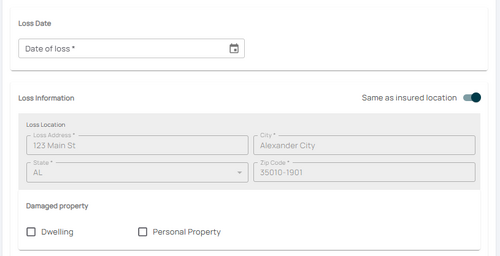
Scroll down to the '''Loss Date''' section and enter the date of loss.
Scroll down to the '''Loss Date''' section and enter the date of loss.
* The loss cannot be a future date. The claim must have incurred damage to the subject property.
* The loss cannot be a future date. The claim must have incurred damage to the subject property.
* Confirm the Loss Location
* Confirm the '''Loss Location'''.
* Confirm the property that was damaged (building, personal property, or both)
* Confirm the property that was damaged (building, personal property, or both).
{{Img-proc-free
{{Img-proc-free
|style = padding-top: 1em
|style = padding-top: 1em
Line 83:
Line 85:
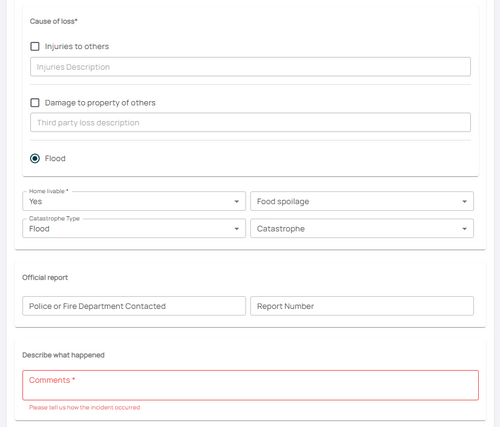
* Choose all applicable options.
* Choose all applicable options.
* Only the fields marked with an asterisk (*) are required; all other fields are optional.
* Only the fields marked with an asterisk (*) are required; all other fields are optional.
* Enter as much information in the Comments section that would be relevant to a Claims Adjuster.
* Enter as much information in the '''Comments section''' that would be relevant to a Claims Adjuster.
{{Img-proc-free
{{Img-proc-free
|style = padding-top: 1em
|style = padding-top: 1em
Line 98:
Line 100:
|content =
|content =
{{Box task
{{Box task
|image = Img-proc-effective-date-dropdown.png
|image = Img-proc-fnol-06.png
|size = 120px
|size = 300px
|alt = An image of a date being selected
|alt =
|caption = Choose the correct effective date for the policy change
|caption = Enter the details of the person who is to be notified after the claim has started
|text =
|text =
Scroll to the top of the page to enter the effective date.
Scroll down to the '''Contact Information''' section
* Backdating is not allowed.
* The information here will auto-populate with the policyholder's contact details.
* Enter today's date or a later effective date.
* Two options in the upper right corner allow the fields to be cleared or populated with the "Reported By" details
* Choose "None" for the [[Waiting Periods|Waiting Period]].
* This individual will be the primary contact for the Claims Adjuster when they visit the site.
'''''The Policy Change cannot be completed without choosing an effective date.'''''
Choose '''Add Third Party''' when the claim will be handled by a third party, like a public adjuster.
}}
}}
<!-- END OF COLLAPSIBLE SECTION -->
<!-- END OF COLLAPSIBLE SECTION -->
Line 114:
Line 116:
|number = 4
|number = 4
|title = 4. Review and Submit
|title = 4. Review and Submit
|content = Review the changes for accuracy and completeness before finalizing.<br>
|content = Review all the information on the single page for accuracy and completeness before finalizing.<br>
Once the effective date is entered, click the Issue button.
Confirm the details with the claimant. This provides accuracy and assurance.
* The "Abort" button will exit without saving any details.
* The "'''Discard'''" button will move the user back to the [[Policy Record]] or the [[Agency Workspace]].
{{Img-proc-free
{{Img-proc-free
|style = padding-top: 1em
|style = padding-top: 1em
|file = Img-proc-effective-date-buttons.png
|file = Img-proc-fnol-07.png
|caption = Click the Issue button to finish the policy change.
|caption = Click the "Submit Information and Report Claim" button to finish reporting the claim.
}}
}}
{{clear}}
{{clear}}
The system will process the change immediately.
The system will process the [[First Notice of Loss]] after the "'''Submit Information and Report Claim'''" button is clicked.
* A Declarations page with the updated information will be available in the Documents section of the Policy Record.
* Catastrophic events may not assign a Claims Adjuster immediately.
* If a Renewal Notice exists and the policy has not expired, then a new Renewal Notice will be sent to the updated payor.<br>
* If a Renewal Notice exists and the policy has not expired, then a new Renewal Notice will be sent to the updated payor.<br>
'''If the lender or insured needs an immediate copy, then one can be downloaded and emailed.'''
This procedure explains how agents can submit a First Notice of Loss (FNOL) in the Equinox platform.
This initiates the claims process for a policyholder after a loss event.
Procedural Steps
1. Open New Claim
A claim can be started one of two ways (A or B, not both), which requires access to the policy.
A. Click the Report Claim button at the top of the Agency Workspace
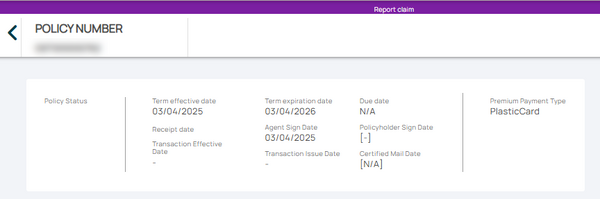
The next page will prompt to search for a policy number.
Enter the policy number.
Choose the correct policy from the list.
Find the button on the Agency Dashboard.
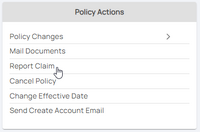
Use the "Policy Actions" menu along the right side of the page and click on "Report Claim"