(41 intermediate revisions by the same user not shown)
Line 4:
Line 4:
|color = orange
|color = orange
|title =
|title =
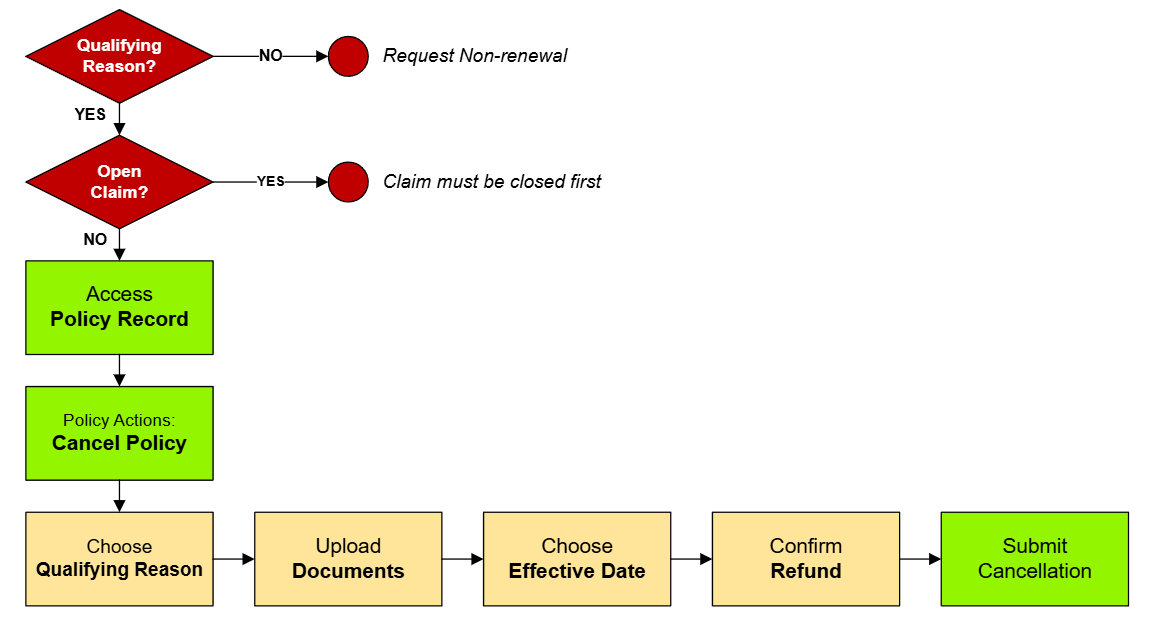
|text = This procedure explains how agents can '''submit a cancellation request''' for an NFIP policy using the Equinox platform. The details below will help to orient and guide the agent through each step of the procedure and give additional resources as needed.
|text = This procedure explains how agents can submit a '''[[NFIP Cancellations|cancellation request for an NFIP policy]]'''. <br>
This will not auto-issue and must be reviewed by Underwriting before it is cancelled.
}}
{{Img-proc-nofrm
|file = File:Img-vector-cancellation-submit.png
}}
}}
{{clear}}
{{clear}}
Line 10:
Line 14:
{{collapsible-section
{{collapsible-section
|number = 1
|number = 1
|title = 1. Access Policy Record
|title = 1. Policy Record
|content =
|content =
{{Box task
{{Box task
|image = Img-proc-cxl-01.png
|image = Img-proc-cxl-01.png
|size = 200px
|size = 300px
|alt =
|alt =
|caption = Use the "Policy Changes" menu along the right side of the page.
|caption = Use the "Policy Actions" menu along the right side of the page.
|text = <big>'''Open the [[Policy Record]] to start'''</big>
|text = <big>'''Open the [[Policy Record]].'''</big>
To quickly navigate to the Policyholder section:
To start the policy cancellation process
* Find the '''Policy Actions''' block on the right
* Find the '''Policy Actions''' block on the right
* Choose "'''Cancel Policy'''"
* Choose "'''Cancel Policy'''"
{{Attention|Policies cannot be cancelled because the insured no longer wants it. <br>There must be a Qualifying Reason.}}
}}
{{Box task
|image = Img-proc-cxl-02.png
|size = 300px
|alt =
|caption = NFIP Policy Cancellation page
|text = <big>This will open the '''NFIP Policy Cancellation''' page.</big>
This page has the following sections:
# '''Qualifying Reason''' dropdown list
# Upload '''Cancellation Documents'''
# Cancellation '''Effective Date'''
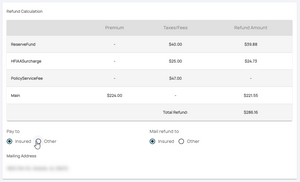
# Cancellation '''Refund and Mailing''' Instructions
# '''Abandon''': Exit the cancellation without submitting anything
# '''Submit''': Create the Request Form and add any uploaded cancellation documents
All sections will be shown after a '''Qualifying Reason''' is chosen from the first dropdown box.
}}
}}
<!-- END OF COLLAPSIBLE SECTION -->
<!-- END OF COLLAPSIBLE SECTION -->
Line 26:
Line 48:
{{collapsible-section
{{collapsible-section
|number = 2
|number = 2
|title = 2. Start Cancellation Request
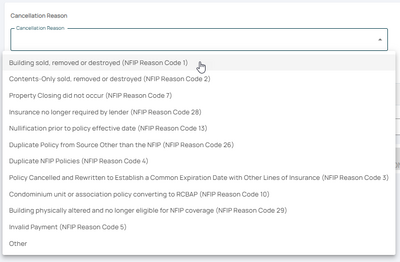
|title = 2. Qualifying Reason
|content =
|content =
Enter the cancellation details, including:
<big>'''Choose the appropriate Qualifying Reason.'''</big>
* Reason code
{{Box task
* Effective date of cancellation
|image = Img-proc-cxl-03.png
|size = 400px
|caption = Choose the appropriate qualifying reason from the dropdown list
|text =
The NFIP '''[[Cancellation Qualifying Reasons]]''' are listed from the top-down based on how common they are.
For instance, most policies are cancelled after the sale of the building, which is at the top of the list.
* The '''Reason Codes''' are used for reporting to FEMA
* The Qualifying Reason will determine the cancellation '''effective date'''
* The '''Reason Code can be changed''' after submitting the request to Underwriting
}}
}}
}}
{{collapsible-section
{{collapsible-section
|number = 3
|number = 3
|title = 3. Attach Supporting Documentation
|title = 3. Supporting Documentation
|content =
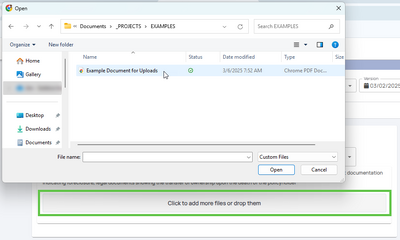
|content = <big>'''Upload the Supporting Documentation.'''</big>
Upload any required documentation, such as:
{{Box task
* NFIP Cancellation/Nullification Request form signed by the policyholder
|image = Img-proc-cxl-04.png
* Proof of sale, duplicate coverage, or other applicable evidence
|size = 400px
Verify that all uploaded files are properly labeled and linked to the policy record.
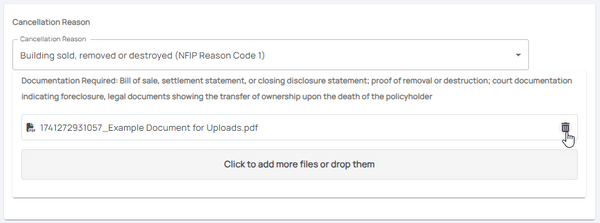
|caption = Upload supporting documentation for the cancellation
|text =
Select the button that shows "'''Click to add more files or drop them'''".
Upload any '''[[Required Cancellation Documents]]''' as shown under the '''Qualifying Reason''', such as:
This procedure explains how agents can submit a cancellation request for an NFIP policy.
This will not auto-issue and must be reviewed by Underwriting before it is cancelled.
Procedural Steps
1. Policy Record
Use the "Policy Actions" menu along the right side of the page.










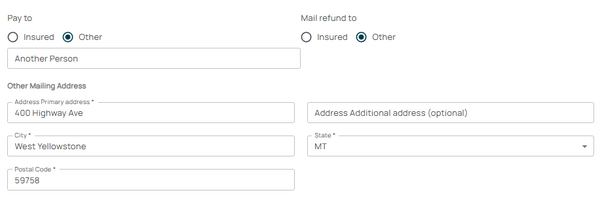 If "Other" is chosen, complete the form fields to adjust who is shown on the check and where it will be mailed.


