(17 intermediate revisions by the same user not shown)
Line 4:
Line 4:
|title =
|title =
|text = This procedure explains how agents can request a [[NFIP Policy Assignment|policy assignment]]. A policy assignment transfers an NFIP policy from the current policyholder to a new policyholder due to a change in ownership.
|text = This procedure explains how agents can request a [[NFIP Policy Assignment|policy assignment]]. A policy assignment transfers an NFIP policy from the current policyholder to a new policyholder due to a change in ownership.
}}
{{img-proc-nofrm
|file = File:Img-vector-change-insured.png
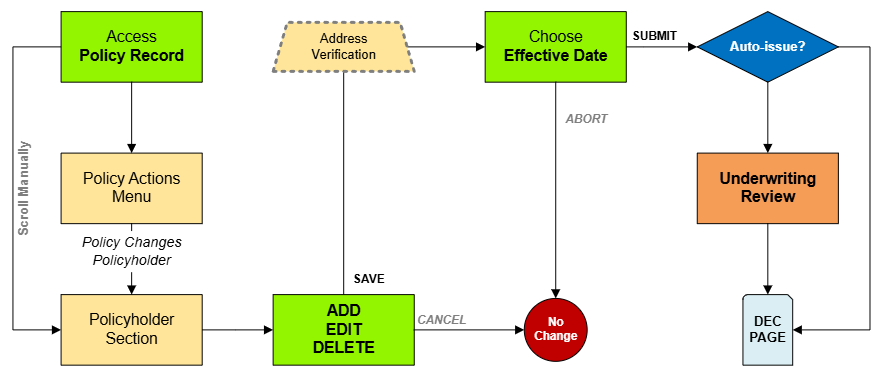
|caption = Policy Changes require specific actions to meet federal guidelines
}}
}}
{{clear}}
{{clear}}
Line 11:
Line 15:
|title = 1. Complete the Form
|title = 1. Complete the Form
|content =
|content =
<div style="padding-bottom: 1em;"><big>'''Prepare the [[:File:Form-Policy-Assignment-01.pdf|Policy Assignment Form]]'''</big></div>
A specific form is not required to complete a Policy Assignment. <br>
A specific form is not required to complete a Policy Assignment. <br>
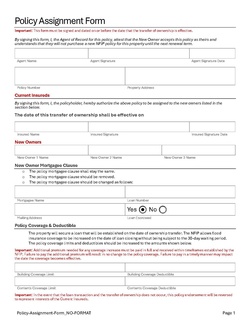
However, the document shown here has been created to assist agents with the process.
However, the document shown here (click to open) has been created to assist agents with the process.
Complete the following fields:
Complete the following fields:
* Policy Number
* Policy Number
Line 21:
Line 26:
* Insured names and signatures (sellers)
* Insured names and signatures (sellers)
* New insured names and signatures (buyers)
* New insured names and signatures (buyers)
Add other details as applicable, such as the [[Mortgagee Clause]] or [[Primary Residence]] verification.
Add other details as applicable, such as the [[Mortgagee Clause]] or [[Primary Residence]] verification.<br>
Print or save the form, then upload it to the [[Policy Documents]].
'''Print or save the form, then upload it to the [[Policy Documents]].'''
}}
}}
{{Attention|1=The form must be signed by seller on or before the closing date. The buyer has up to 30 days to submit to the insurer. [https://www.fema.gov/sites/default/files/documents/fema_nfip_flood-insurance-manual_042024.pdf#page=53]}}
<!-- END OF COLLAPSIBLE SECTION -->
<!-- END OF COLLAPSIBLE SECTION -->
}}
}}
Line 48:
Line 54:
|title = 3. Add, Edit, Delete
|title = 3. Add, Edit, Delete
|content =
|content =
The Policy Assignment may require co-insureds or additional insureds to be added or deleted. The policyholder must be edited.
{{collapsible-details
|number = 31
|title = Edit Policyholder
|content =
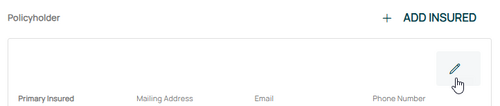
<big>Use the '''Edit button''' (pencil icon) in the upper right of the Policyholder section.</big><br>
{{Img-proc-free
|style = padding-top: 1em
|file = Img-proc-change-insured-edit-icon.png
|size = 500px
|caption = Use the Edit button (pencil icon) in the upper right of the Policyholder section.
}}
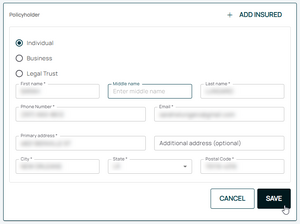
This will open the Insured fields for editing. <br>
{{Box task
|image = Img-proc-change-insured-edit-fields.png
|size = 300px
|alt = An image showing the options in the Policyholder section.
|caption = Make the appropriate entries to the policyholder details as needed.
|text =
<big>'''Change Policyholder Details'''</big><br>
Make changes to the following:
* Legal status/entity
* Name
* Email address
* Phone number
* Mailing address.
Once all details are entered, click the "Save" button.
}}
'''If co-insureds or additional insureds need to be added or removed, refer to the boxes below.'''<br>
If nothing else remains, move to Step 4 below.
}}
{{collapsible-details
|number = 32
|title = Add Insured
|content =
{{Box task
|image = Img-proc-change-insured-add.png
|size = 200px
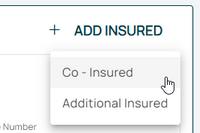
|caption = After selecting the Add Insured button, choose either a co-insured or an additional insured.
|text =
When adding a new insured (co-insured or additional insured), click the "'''Add Insured'''" button in the upper right of the Policyholder section.
* Select "Individual", "Business", or "Legal Trust"
* Enter the contact details in the fields below.
* All starred fields are required.
}}
'''If co-insureds or additional insureds need to be removed, refer to the box below.'''<br>
If nothing else remains, move to Step 4 below.
}}
{{collapsible-details
|number = 33
|title = Delete Insured
|content =
<big>Use the '''Delete button''' (trash can icon) in the upper right of the Co-insured or Additional Insured section.</big><br>
''The policyholder can be edited but not deleted.''
{{Img-proc-free
|style = padding-top: 1em
|file = Img-proc-change-insured-delete.png
|size = 500px
|caption = Use the Delete button (trash can icon) in the upper right of the Co-insured or Additional Insured section.
}}
{{Attention|If chosen by accident, this can be undone by clicking the '''Abort''' button in the upper right.}}
If no other changes are needed, move to Step 4 below.
}}
<!-- END OF COLLAPSIBLE SECTION -->
<!-- END OF COLLAPSIBLE SECTION -->
Line 62:
Line 133:
}}
}}
Scroll to the top of the page to enter the effective date.
Scroll to the top of the page to enter the effective date.
* Enter the appropriate date.
* The Effective Date should match the closing (transfer of ownership) date.
* Backdating to the inception date is allowed for corrections.
* Choose "None" for the [[Waiting Periods|Waiting Period]].
* Choose "None" for the [[Waiting Periods|Waiting Period]].
'''''The Policy Change cannot be completed without choosing an effective date.'''''
'''''The Policy Assignment cannot be completed without choosing an effective date.'''''
This procedure explains how agents can request a policy assignment. A policy assignment transfers an NFIP policy from the current policyholder to a new policyholder due to a change in ownership.