(6 intermediate revisions by the same user not shown)
Line 16:
Line 16:
|content =
|content =
{{Box task
{{Box task
|image = Img-proc-change-strvar-section.png
|image = Img-proc-actions-change-coverage.png
|size = 300px
|size = 200px
|caption = Scroll to the Risk Characteristics in the Policy Record.
|caption = Use the "Policy Changes" menu along the right side of the page.
|text = <big>'''Open the [[Policy Record]] to start'''</big><br>
|text = <big>'''Open the [[Policy Record]] to start'''</big>
Scroll down to the "Risk Characteristics" section manually. <br>
* Find the '''Policy Actions''' block on the right
''There is no navigation option in the '''Policy Actions''' menu.''
* Choose '''Change Effective Date'''
An [[Policy Documents|uploaded document]] that requests a correction to the Effective Date is also acceptable.
}}
}}
<!-- END OF COLLAPSIBLE SECTION -->
<!-- END OF COLLAPSIBLE SECTION -->
Line 27:
Line 28:
{{collapsible-section
{{collapsible-section
|number = 2
|number = 2
|title = 2. Edit Risk Characteristics
|title = 2. Select New Effective Date
|content =
|content =
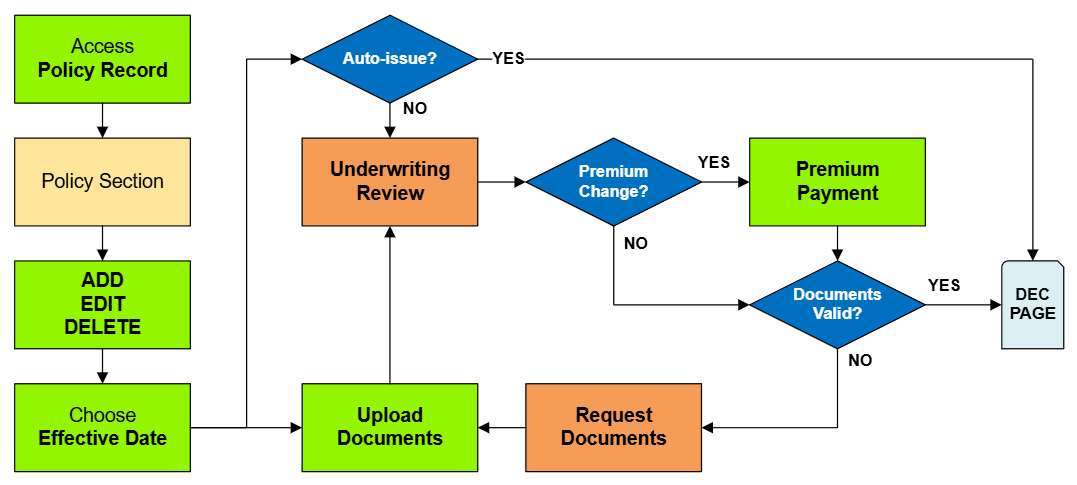
<big>Use the '''Edit button''' (pencil icon) in the upper right of the '''Risk Characteristics''' section.</big><br>
<big>Use the '''Edit button''' (pencil icon) in the upper right of the '''Risk Characteristics''' section.</big><br>
Line 48:
Line 49:
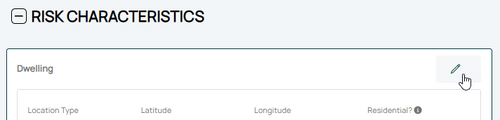
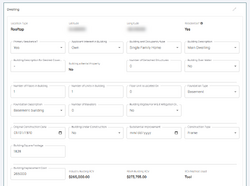
* The collapsed table below shows a sortable list of all fields.
* The collapsed table below shows a sortable list of all fields.
}}
}}
{{Docs-req|'''Changes:''' proof of a change to the building, such as a photograph.}}
{{Docs-req|An agent statement that the item was incorrect on the original application.}}
{{Docs-req|'''Corrections:''' an agent statement that the item was incorrect on the original application.}}
{{attention|'''Changes:''' the effective date is '''the date the change occurred''' (the event date). <br>'''Corrections:''' the effective date is '''the policy inception date'''.}}
{{table-structural-variables}}
<div style="margin-top:10px;">'''Once all details are entered, click the "Save" button (move to Step 3 below).'''</div>
<div style="margin-top:10px;">'''Once all details are entered, click the "Save" button (move to Step 3 below).'''</div>
<!-- END OF COLLAPSIBLE SECTION -->
<!-- END OF COLLAPSIBLE SECTION -->
Line 57:
Line 55:
{{collapsible-section
{{collapsible-section
|number = 3
|number = 3
|title = 3. Choose Effective Date
|title = 3. Review and Submit
|content =
{{Img-proc-free
|style = padding-top: 1em
|file = Img-proc-change-insured-eff-date.png
|size = 700px
|caption = Choose "None" for the Waiting Period and select the appropriate Policy Change Effective Date.
}}
Scroll to the top of the page to enter the effective date.
* Choose "None" from the [[Waiting Periods|Waiting Period]] dropdown box.
* Determine and enter the appropriate date based on whether this is changing a building detail or correcting it.
'''''The Coverage Change cannot be completed without choosing an effective date.'''''
<!-- END OF COLLAPSIBLE SECTION -->
}}
{{collapsible-section
|number = 4
|title = 4. Review and Submit
|content = Review the changes for accuracy and completeness before finalizing.<br>
|content = Review the changes for accuracy and completeness before finalizing.<br>
Once the effective date is entered, a pro-rated premium amount might be displayed.
Once the effective date is entered, a pro-rated premium amount might be displayed.








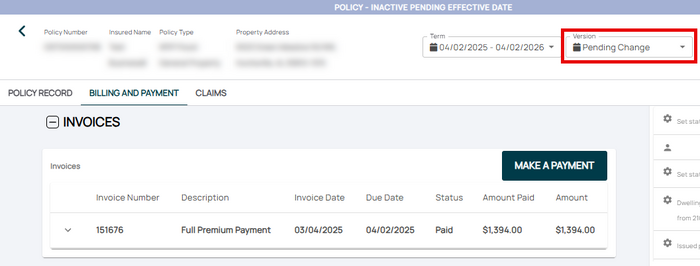 If necessary, the agent can submit a payment on the Billing and Payment page.


