
Submit Change to Mortgagee Clause: Difference between revisions
No edit summary |
No edit summary |
||
| (45 intermediate revisions by the same user not shown) | |||
| Line 1: | Line 1: | ||
{{info-nfip-sfip}}{{eq-proc- | {{info-nfip-sfip}}{{eq-proc-agent}} | ||
{{box-summary | {{box-summary | ||
|color = blue | |color = blue | ||
|title = | |title = | ||
|text = This procedure explains how agents can request '''changes to the [[mortgagee clause]]''' on an NFIP policy. A change in mortgagee will create a new Declarations Page. Incorrect mortgagee information is a common cause of claim payment delay. | |text = This procedure explains how agents can request '''changes to the [[mortgagee clause]]''' on an NFIP policy. A change in mortgagee will create a new Declarations Page.<br>'''''Incorrect mortgagee information is a common cause of claim payment delay.''''' | ||
}} | |||
{{Img-proc-nofrm | |||
|file = File:Img-vector-change-mortgagee.png | |||
}} | }} | ||
{{clear}} | {{clear}} | ||
| Line 9: | Line 12: | ||
{{collapsible-section | {{collapsible-section | ||
|number = 1 | |number = 1 | ||
|title = 1. | |title = 1. Access Policy Record | ||
|content = | |content = | ||
{{Box task | |||
|image = Img-proc-change-mtg.png | |||
|size = 400px | |||
|alt = An image showing the "Policy Changes" widget along the right side of the page. | |||
| | |caption = Use the "Policy Changes" widget along the right side of the page. | ||
|text = <big>'''Open the [[Policy Record]] to start'''</big> | |||
To quickly navigate to the Mortgagees section: | |||
* Find the '''Policy Actions''' block on the right | |||
* Choose '''Policy Changes''' | |||
* From the next menu, click the '''Mortgagees''' option | |||
Otherwise, scroll down to the Mortgagees section manually. | |||
}} | }} | ||
<!-- END OF COLLAPSIBLE SECTION --> | |||
}} | }} | ||
{{collapsible-section | {{collapsible-section | ||
|number = 2 | |number = 2 | ||
|title = 2. | |title = 2. Add / Edit / Delete | ||
|content = | |content = | ||
Enter the requested changes using the options below. | Enter the requested changes using the options below. | ||
{{collapsible-details | {{collapsible-details | ||
|number = | |number = 21 | ||
|title = Add | |title = Add | ||
|content = | |content = | ||
To add a mortgagee, follow these steps: | '''To add a mortgagee, follow these steps:''' | ||
{{img-proc-nofrm | {{img-proc-nofrm | ||
|file = File:Img-proc-change-mtg-add.png | |file = File:Img-proc-change-mtg-add.png | ||
| Line 50: | Line 46: | ||
#* All starred content (seen below) must be entered for the "Add" button to activate | #* All starred content (seen below) must be entered for the "Add" button to activate | ||
#* Mortgagee Type will sort the mortgagee clause into the proper position | #* Mortgagee Type will sort the mortgagee clause into the proper position | ||
{{img-proc-nofrm | {{img-proc-nofrm | ||
|file = File:Img-proc-change-mtg-details.png | |file = File:Img-proc-change-mtg-details.png | ||
|width = 500px | |width = 500px | ||
}} | }} | ||
'''Once all details are entered, click the "Save" button (move to Step 3 below).''' | |||
}} | }} | ||
{{collapsible-details | {{collapsible-details | ||
|number = | |number = 22 | ||
|title = | |title = Edit | ||
|content = | |content = | ||
To update a mortgagee, follow these steps: | '''To update a mortgagee, follow these steps:''' | ||
{{img-proc-nofrm | {{img-proc-nofrm | ||
|file = File:Img-proc-change-mtg-update.png | |file = File:Img-proc-change-mtg-update.png | ||
| Line 69: | Line 65: | ||
#* All starred content (seen below) must be entered for the "Save" button to activate | #* All starred content (seen below) must be entered for the "Save" button to activate | ||
#* Mortgagee Type will sort the mortgagee clause into the proper position, such as when moving a first mortgagee into the second mortgagee position | #* Mortgagee Type will sort the mortgagee clause into the proper position, such as when moving a first mortgagee into the second mortgagee position | ||
{{img-proc-nofrm | {{img-proc-nofrm | ||
|file = File:Img-proc-change-mtg-details.png | |file = File:Img-proc-change-mtg-details.png | ||
|width = 500px | |width = 500px | ||
}} | }} | ||
'''Once all details are entered, click the "Save" button (move to Step 3 below).''' | |||
}} | }} | ||
{{collapsible-details | {{collapsible-details | ||
|number = | |number = 23 | ||
|title = | |title = Delete | ||
|content = | |content = | ||
To | '''To remove a mortgagee, follow these steps:''' | ||
{{img-proc-nofrm | {{img-proc-nofrm | ||
|file = File:Img-proc-change-mtg-delete.png | |file = File:Img-proc-change-mtg-delete.png | ||
| Line 90: | Line 86: | ||
|width = 600px | |width = 600px | ||
}} | }} | ||
Once all details are entered, click the "Save" button (move to Step | '''Once all details are entered, click the "Save" button (move to Step 3 below).''' | ||
}} | }} | ||
<!-- END OF COLLAPSIBLE SECTION --> | <!-- END OF COLLAPSIBLE SECTION --> | ||
}} | }} | ||
{{collapsible-section | {{collapsible-section | ||
|number = | |number = 3 | ||
|title = | |title = 3. Choose Effective Date | ||
|content = | |content = | ||
{{Box task | |||
|image = Img-proc-effective-date-dropdown.png | |||
|size = 120px | |||
|alt = An image of a date being selected | |||
|caption = Choose the correct effective date for the mortgagee clause change | |||
|text = | |||
Scroll to the top of the page to enter the effective date. | Scroll to the top of the page to enter the effective date. | ||
* Backdating is not allowed. | * Backdating is not allowed. | ||
* Enter today's date or a later effective date. | * Enter today's date or a later effective date. | ||
* Choose "None" for the [[Waiting Periods|Waiting Period]]. | |||
'''''The Policy Change cannot be completed without choosing an effective date.''''' | |||
}} | |||
<!-- END OF COLLAPSIBLE SECTION --> | |||
}} | }} | ||
{{collapsible-section | |||
|number = 4 | |||
|title = 4. Review and Submit | |||
|content = Review the changes for accuracy and completeness before finalizing.<br> | |||
Once the effective date is entered, click the Issue button. | Once the effective date is entered, click the Issue button. | ||
{{ | * The "Abort" button will exit without saving any details. | ||
|file = | {{Img-proc-free | ||
| | |style = padding-top: 1em | ||
|file = Img-proc-effective-date-buttons.png | |||
|caption = Click the Issue button to finish the policy change. | |||
}} | }} | ||
{{clear}} | |||
The system will process the change immediately. A Declarations page with the updated information will be available in the Documents section of the Policy Record. <br> | The system will process the change immediately. A Declarations page with the updated information will be available in the Documents section of the Policy Record. <br> | ||
'''If the lender or insured needs an immediate copy, then one can be downloaded and emailed.''' | '''If the lender or insured needs an immediate copy, then one can be downloaded and emailed.''' | ||
<!-- END OF COLLAPSIBLE SECTION --> | |||
}} | }} | ||
{{line-nfip-endorse}} | {{line-nfip-endorse}} | ||
Latest revision as of 11:08, 4 March 2025


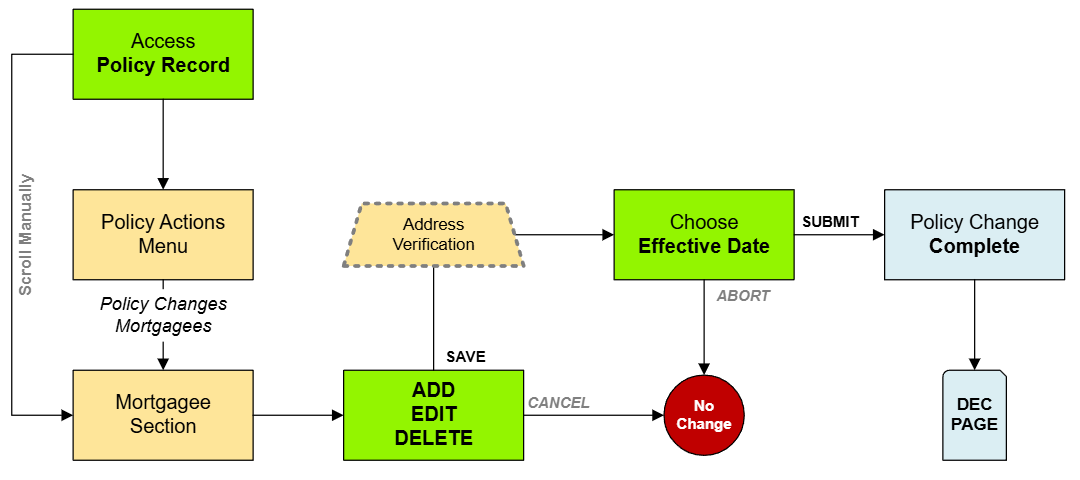
This procedure explains how agents can request changes to the mortgagee clause on an NFIP policy. A change in mortgagee will create a new Declarations Page.
Incorrect mortgagee information is a common cause of claim payment delay. |
Procedural Steps
1. Access Policy Record

Open the Policy Record to start
To quickly navigate to the Mortgagees section:
- Find the Policy Actions block on the right
- Choose Policy Changes
- From the next menu, click the Mortgagees option
2. Add / Edit / Delete
Enter the requested changes using the options below.
Add
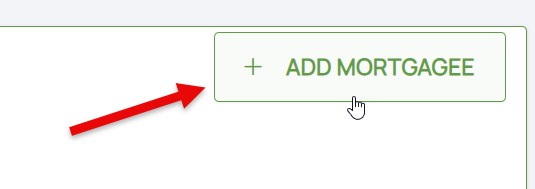
To add a mortgagee, follow these steps:
 Once all details are entered, click the "Save" button (move to Step 3 below).
- Click the "Add Mortgagee" button
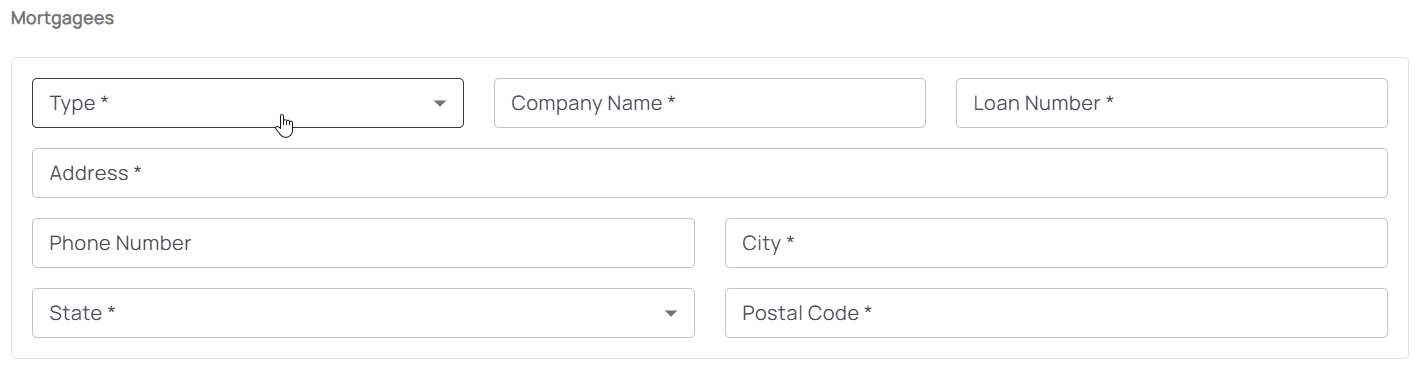
- Enter the mortgagee information
- All starred content (seen below) must be entered for the "Add" button to activate
- Mortgagee Type will sort the mortgagee clause into the proper position
Edit
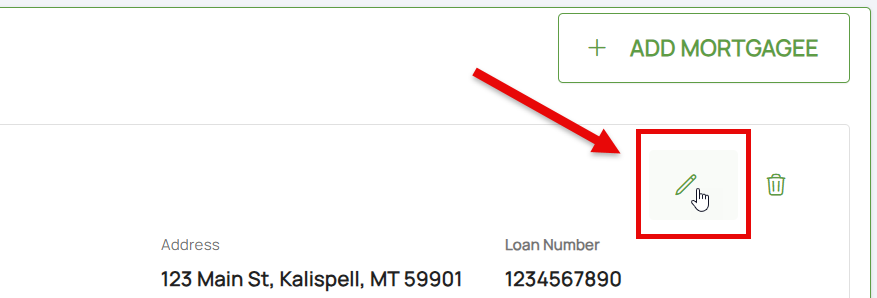
To update a mortgagee, follow these steps:
 Once all details are entered, click the "Save" button (move to Step 3 below).
- Click the Pencil icon
- Adjust the appropriate mortgagee information
- All starred content (seen below) must be entered for the "Save" button to activate
- Mortgagee Type will sort the mortgagee clause into the proper position, such as when moving a first mortgagee into the second mortgagee position
Delete
To remove a mortgagee, follow these steps:
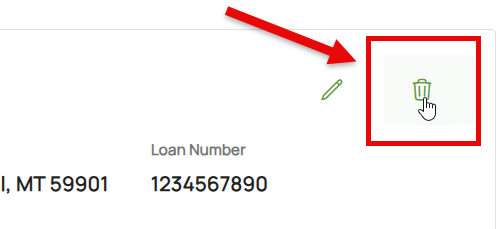
 Once all details are entered, click the "Save" button (move to Step 3 below).
- Click the Trash Can icon
- If needed, the deletion can be reverted (see below)
3. Choose Effective Date

Scroll to the top of the page to enter the effective date.
- Backdating is not allowed.
- Enter today's date or a later effective date.
- Choose "None" for the Waiting Period.
4. Review and Submit
Review the changes for accuracy and completeness before finalizing.

Once the effective date is entered, click the Issue button.
- The "Abort" button will exit without saving any details.

The system will process the change immediately. A Declarations page with the updated information will be available in the Documents section of the Policy Record.
