
Submit Change to NFIP Billing Instructions: Difference between revisions
No edit summary |
No edit summary |
||
| (3 intermediate revisions by the same user not shown) | |||
| Line 7: | Line 7: | ||
}} | }} | ||
{{Img-proc-nofrm | {{Img-proc-nofrm | ||
|file = File:Img-vector-change- | |file = File:Img-vector-change-billing.png | ||
}} | }} | ||
{{clear}} | {{clear}} | ||
| Line 47: | Line 47: | ||
|caption = Make the appropriate selections to the Renewal Billing Instructions as needed. | |caption = Make the appropriate selections to the Renewal Billing Instructions as needed. | ||
|text = | |text = | ||
<big>Section 1: Is the Policy Force Placed by the Lender?</big> | <big>'''Section 1:''' Is the Policy Force Placed by the Lender?</big> | ||
If the lender (mortgagee) required the NFIP policy as a condition to a loan, then select the "Yes" radio button.<br> | If the lender (mortgagee) required the NFIP policy as a condition to a loan, then select the "Yes" radio button.<br> | ||
<big>Section 2: Renewal Billing Instructions</big><br> | <big>'''Section 2:''' Renewal Billing Instructions</big><br> | ||
Choose the radio button to make changes to the payor.<br> | Choose the radio button to make changes to the payor.<br> | ||
'''Once all details are entered, click the "Save" button (move to Step 3 below).''' | '''Once all details are entered, click the "Save" button (move to Step 3 below).''' | ||
| Line 64: | Line 64: | ||
|caption = After selecting the Other button, add contact information into the additional fields. | |caption = After selecting the Other button, add contact information into the additional fields. | ||
|text = | |text = | ||
If the Renewal Notice should go to another entity, such as a property management company, then choose the "Other" option. | |||
* Select "Individual" or "Business" | |||
* Enter the contact details in the fields below. | |||
* All starred fields are required. | |||
Click the "Save" button after all details are entered and move to Step 3 below. | |||
}} | }} | ||
}} | }} | ||
| Line 77: | Line 81: | ||
|size = 120px | |size = 120px | ||
|alt = An image of a date being selected | |alt = An image of a date being selected | ||
|caption = Choose the correct effective date for the | |caption = Choose the correct effective date for the policy change | ||
|text = | |text = | ||
Scroll to the top of the page to enter the effective date. | Scroll to the top of the page to enter the effective date. | ||
Latest revision as of 11:50, 4 March 2025


NFIP Renewal Bills can be sent to the insured or other interested parties, such as a named mortgagee. This procedure will show how to update where the renewal bill will be sent.
|
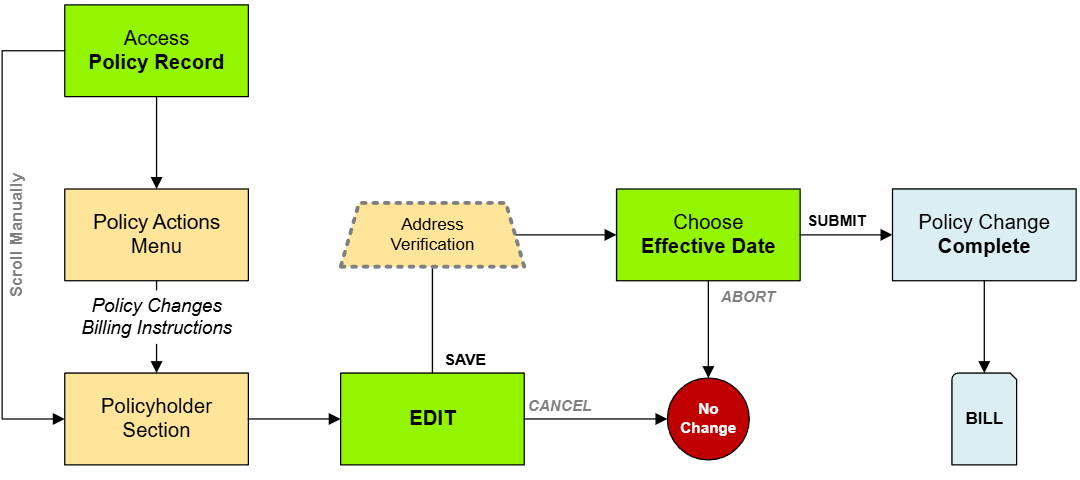
Procedural Steps
1. Access Policy Record

Open the Policy Record to start
To quickly navigate to the Policyholder section:
- Find the Policy Actions block on the right
- Choose Policy Changes
- From the next menu, click the Billing Instructions option
2. Edit
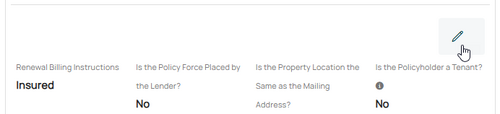
Use the Edit button (pencil icon) below the Primary Insured contact details.
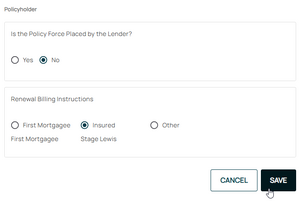
Make the appropriate selections to the Renewal Billing Instructions as needed. 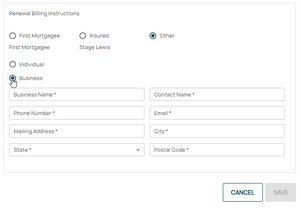
After selecting the Other button, add contact information into the additional fields.

This will open the Renewal Billing Instructions fields for editing.

Section 1: Is the Policy Force Placed by the Lender?
If the lender (mortgagee) required the NFIP policy as a condition to a loan, then select the "Yes" radio button.
Section 2: Renewal Billing Instructions
Choose the radio button to make changes to the payor.
Renewal Billing Instructions: Other

If the Renewal Notice should go to another entity, such as a property management company, then choose the "Other" option.
- Select "Individual" or "Business"
- Enter the contact details in the fields below.
- All starred fields are required.
3. Choose Effective Date

Scroll to the top of the page to enter the effective date.
- Backdating is not allowed.
- Enter today's date or a later effective date.
- Choose "None" for the Waiting Period.
4. Review and Submit
Review the changes for accuracy and completeness before finalizing.

Once the effective date is entered, click the Issue button.
- The "Abort" button will exit without saving any details.

The system will process the change immediately.
- A Declarations page with the updated information will be available in the Documents section of the Policy Record.
- If a Renewal Notice exists and the policy has not expired, then a new Renewal Notice will be sent to the updated payor.
