
Submit Change to Structural Variable: Difference between revisions
| Line 74: | Line 74: | ||
|title = 4. Review and Submit | |title = 4. Review and Submit | ||
|content = Review the changes for accuracy and completeness before finalizing.<br> | |content = Review the changes for accuracy and completeness before finalizing.<br> | ||
Once the effective date is entered, | Once the effective date is entered, a pro-rated premium amount might be displayed. | ||
* The "Abort" button will exit the process without saving any details. | * The "Abort" button will exit the process without saving any details. | ||
* The "Submit" button will create the policy change form and mark the policy with "'''Pending Change'''" and "'''Pending Payment'''" | * The "Submit" button will create the policy change form and mark the policy with a "'''Pending Change'''" (and "'''Pending Payment'''") flag. | ||
{{Img-proc-free | {{Img-proc-free | ||
|style = padding-top: 1em | |style = padding-top: 1em | ||
| Line 90: | Line 90: | ||
|file = Img-proc-change-coverage-pending-message.png | |file = Img-proc-change-coverage-pending-message.png | ||
|size = 700px | |size = 700px | ||
|caption = The Policy Record will show Pending Payment and Pending Change | |caption = The Policy Record will show a Pending Payment (and perhaps a Pending Change) flag. | ||
}} | }} | ||
{{clear}} | {{clear}} | ||
The Policy Record will show Pending Payment and Pending Change | The Policy Record will show a Pending Payment (and perhaps a Pending Change) flag. | ||
{{Img-proc-free | {{Img-proc-free | ||
|style = padding-top: 1em | |style = padding-top: 1em | ||
|file = Img-proc-change-coverage-pending-flag.png | |file = Img-proc-change-coverage-pending-flag.png | ||
|size = 700px | |size = 700px | ||
|caption = The policy in the Agency Workspace will show Pending Payment and Pending Change | |caption = The policy in the Agency Workspace will show a Pending Payment (and perhaps a Pending Change) flag. | ||
}} | }} | ||
{{clear}} | {{clear}} | ||
The policy in the Agency Workspace will show Pending Payment and Pending Change | The policy in the Agency Workspace will show a Pending Payment (and perhaps a Pending Change) flag. | ||
{{Img-proc-free | {{Img-proc-free | ||
|style = padding-top: 1em | |style = padding-top: 1em | ||
|file = Img-proc-change-coverage-payment-agent.png | |file = Img-proc-change-coverage-payment-agent.png | ||
|size = 700px | |size = 700px | ||
|caption = | |caption = If necessary, the agent can submit a payment on the '''Billing and Payment''' page. | ||
}} | }} | ||
{{clear}} | {{clear}} | ||
If necessary, the agent can '''[[Premium Payment|submit a payment]]''' on the '''Billing and Payment''' page. | |||
<!-- END OF COLLAPSIBLE SECTION --> | <!-- END OF COLLAPSIBLE SECTION --> | ||
}} | }} | ||
{{line-nfip-endorse}} | {{line-nfip-endorse}} | ||
Revision as of 08:18, 12 March 2025


This procedure explains how agents can submit requests to change or correct the building details on an NFIP policy. Most structural variables determine policy rating, so premium may be impacted. Supporting documentation may be required.
|
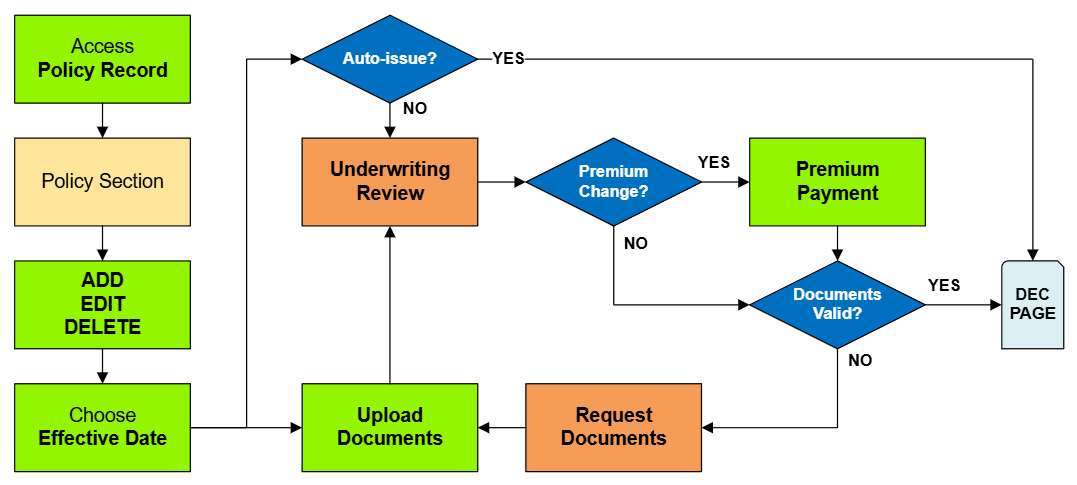
Procedural Steps
1. Access Policy Record
Scroll down to the "Risk Characteristics" section manually.
2. Edit Risk Characteristics

This will open all NFIP structural variable fields for editing.

These fields describe the physical details of the building, which can be changed over time due to reconstruction or disrepair.
- Building characteristics should be accurately represented on an NFIP policy.
- They can be corrected if they are not.
Required Documentation: Changes: proof of a change to the building, such as a photograph.
Required Documentation: Corrections: an agent statement that the item was incorrect on the original application.
Corrections: the effective date is the policy inception date.
3. Choose Effective Date

Scroll to the top of the page to enter the effective date.
- Choose "None" from the Waiting Period dropdown box.
- Determine and enter the appropriate date based on whether this is changing a building detail or correcting it.
4. Review and Submit
Once the effective date is entered, a pro-rated premium amount might be displayed.
- The "Abort" button will exit the process without saving any details.
- The "Submit" button will create the policy change form and mark the policy with a "Pending Change" (and "Pending Payment") flag.

The system will not process the change immediately.

The Policy Record will show a Pending Payment (and perhaps a Pending Change) flag.

The policy in the Agency Workspace will show a Pending Payment (and perhaps a Pending Change) flag.


