Pay NFIP New Business: Difference between revisions

From Gulf States Flood Help
No edit summary
No edit summary
Line 59: Line 59:
| file    = Img-proc-pay-app-auto.png
| file    = Img-proc-pay-app-auto.png
| size    = 600px
| size    = 600px
| caption = Here is a caption.
| caption = The policy has auto-issued and nothing else is required
}}
}}
}}
}}
Line 71: Line 71:
| file    = Img-proc-pay-app-completed-uw.png
| file    = Img-proc-pay-app-completed-uw.png
| size    = 600px
| size    = 600px
| caption = Here is a caption.
| caption = The screen will display this message when the policy was paid but not auto-issued. It must be reviewed and issued by Underwriting.
}}
}}
The policy can be found in the '''Pending Transactions''' queue with a "'''Pending New Business'''" flag.
Line 77: Line 77:
| file    = Img-proc-pay-pending-q-nb-paid.png
| file    = Img-proc-pay-pending-q-nb-paid.png
| size    = 600px
| size    = 600px
| caption = Here is a caption.
| caption = The policy can be found in the Pending Transactions queue after it has been paid; it needs to be reviewed by Underwriting.
}}
}}
}}
}}
Line 89: Line 89:
| file    = Img-proc-pay-app-print.png
| file    = Img-proc-pay-app-print.png
| size    = 400px
| size    = 400px
| caption = Here is a caption.
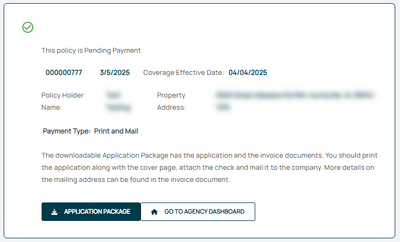
| caption = The screen will display this message when the "Print and Mail" option is chosen. The policy has not been paid.
}}
}}
The policy can be found in the '''Pending Transactions''' queue with a "'''Pending Payment'''" flag.
Line 95: Line 95:
| file    = Img-proc-pay-pending-q-nb.png
| file    = Img-proc-pay-pending-q-nb.png
| size    = 600px
| size    = 600px
| caption = Here is a caption.
| caption = The policy can be found in the Pending Transactions queue; it needs to be paid.
}}
}}
}}
}}
Line 107: Line 107:
| file    = Img-proc-pay-app-email.png
| file    = Img-proc-pay-app-email.png
| size    = 400px
| size    = 400px
| caption = Here is a caption.
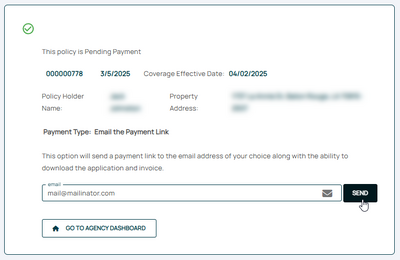
| caption = The screen will display this message when the "Email the Payment Link" option is chosen. The policy has not been paid.
}}
}}
The policy can be found in the '''Pending Transactions''' queue with a "'''Pending Payment'''" flag.
Line 113: Line 113:
| file    = Img-proc-pay-pending-q-nb.png
| file    = Img-proc-pay-pending-q-nb.png
| size    = 600px
| size    = 600px
| caption = Here is a caption.
| caption = The policy can be found in the Pending Transactions queue; it needs to be paid.
}}
}}
}}
}}
Line 125: Line 125:
| file    = Img-proc-pay-pending-q-nb.png
| file    = Img-proc-pay-pending-q-nb.png
| size    = 600px
| size    = 600px
| caption = Here is a caption.
| caption = The policy can be found in the Pending Transactions queue; it needs to be paid.
}}
}}
Open the '''[[Policy Record]]'''.<br>
Line 133: Line 133:
| file    = Img-proc-pay-pending-policy-nb-01.png
| file    = Img-proc-pay-pending-policy-nb-01.png
| size    = 600px
| size    = 600px
| caption = Here is a caption.
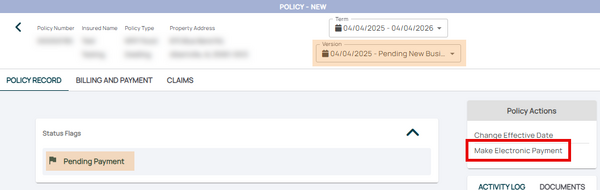
| caption = The Policy Record shows a "Pending Payment" flag and the option to make an electronic payment under Policy Actions.
}}
}}
The '''Billing and Payment''' screen also shows a "Pending" status in the '''Invoices''' section. <br>
Line 140: Line 140:
| file    = Img-proc-pay-pending-policy-nb-02.png
| file    = Img-proc-pay-pending-policy-nb-02.png
| size    = 600px
| size    = 600px
| caption = Here is a caption.
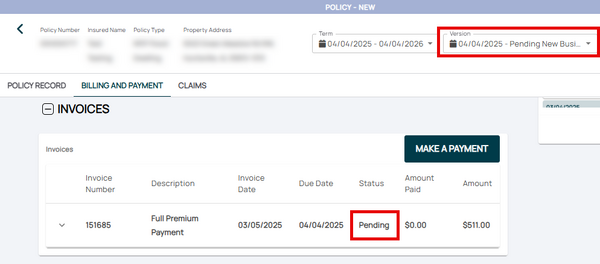
| caption = The Billing and Payment screen shows a Pending status under Invoices and a "Make Payment" button.
}}
}}
}}
}}

Revision as of 14:47, 5 March 2025

This Equinox Procedure is for Agents. Find a complete list here.

This procedure explains how agents can submit premium payments for NFIP New Business applications.

Procedural Steps

1. Complete Application

Sign the NFIP application electronically
Finish the NFIP Application
  • Provide a drawn or text electronic signature
  • Click the "Use This Signature" button
This records the signature date as "Date Signed"
  • Click the "Continue" button
This moves the user out of the application and into the Payment Methods (see Step 2, below)

2. Choose Payment Method

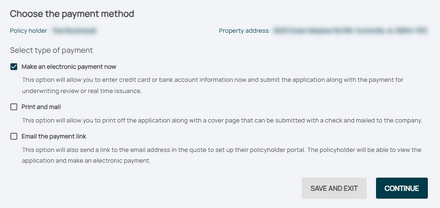
The next page allows the agent to choose between three payment methods.
Three agent options after the application is complete
  • Make an electronic payment now
Use Equinox to make an immediate Premium Payment
  • Print and mail
Print the application packet; payment will be mailed to the address provided
  • Email the payment link
Forward an email link to the policyholder to make payment using the Consumer Portal

Clicking the "Continue" button will create a new policy, as shown in Step 3 below.

3. Follow-up

The type of follow-up needed will be dependent on payment method. Click the appropriate box below for more details.
Immediate Payment, Auto-issued
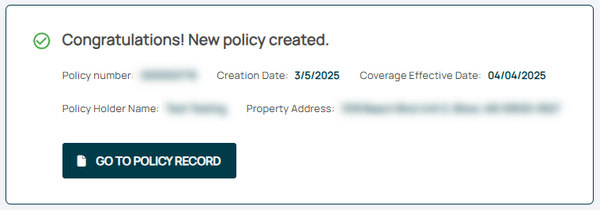
After the premium payment is submitted using Equinox, the policy may auto-issue. This requires no underwriting review.
The policy has auto-issued and nothing else is required
Immediate Payment, Underwriting
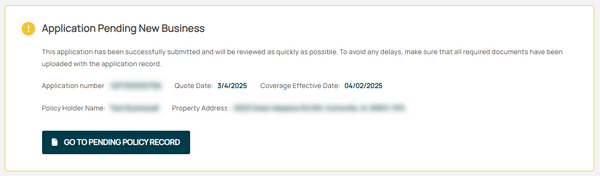
After the premium payment is submitted using Equinox, the policy may require underwriting review.
The screen will display this message when the policy was paid but not auto-issued. It must be reviewed and issued by Underwriting.

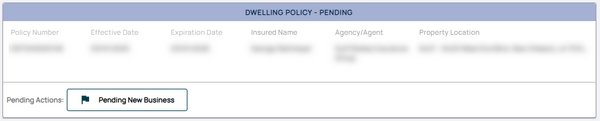
The policy can be found in the Pending Transactions queue with a "Pending New Business" flag.

The policy can be found in the Pending Transactions queue after it has been paid; it needs to be reviewed by Underwriting.
Equinox Options After "Print and Mail"
Use this page to download a copy of the Application Package to your device by clicking the button
The screen will display this message when the "Print and Mail" option is chosen. The policy has not been paid.

The policy can be found in the Pending Transactions queue with a "Pending Payment" flag.

The policy can be found in the Pending Transactions queue; it needs to be paid.
Equinox Options After "Email the Payment Link"
Use this page to email a link to the payment page of the Consumer Portal.

The recipient has the option to download the Application Package.

The screen will display this message when the "Email the Payment Link" option is chosen. The policy has not been paid.

The policy can be found in the Pending Transactions queue with a "Pending Payment" flag.

The policy can be found in the Pending Transactions queue; it needs to be paid.
Make Payment to Policy Pending Payment
A New Business policy in the Pending Transactions queue with a "Pending Payment" flag can be paid directly using Equinox.
The policy can be found in the Pending Transactions queue; it needs to be paid.

Open the Policy Record.
The policy will have a status flag showing "Pending Payment".
Click the "Make Electronic Payment" option under Policy Actions to submit premium payment.

The Policy Record shows a "Pending Payment" flag and the option to make an electronic payment under Policy Actions.

The Billing and Payment screen also shows a "Pending" status in the Invoices section.
Click the Make a Payment button to submit premium payment.

The Billing and Payment screen shows a Pending status under Invoices and a "Make Payment" button.

This page contains details about NFIP New Business.
Find more in the How To Write section of the NFIP Flood Insurance Manual.