
Submit Change to NFIP Coverage: Difference between revisions
| Line 66: | Line 66: | ||
{{Box task | {{Box task | ||
|image = Img-proc-change-coverage-fields.png | |image = Img-proc-change-coverage-fields.png | ||
|size = | |size = 500px | ||
|caption = Make adjustments to the coverage and deductibles as appropriate. | |caption = Make adjustments to the coverage and deductibles as appropriate. | ||
|text = | |text = | ||
Revision as of 14:00, 11 March 2025


This procedure explains how agents can submit requests to change coverage amounts on an NFIP policy. Coverage changes include increases or decreases to building and contents coverage, as well as deductible changes. Supporting documentation may be required depending on the type of change.
|
Coverage Change Types
| Type | Waiting Period Rules | Required Documentation |
|---|---|---|
| Coverage Increase | Standard Waiting Period or Exception | None |
| Coverage Decrease | None; can be applied to inception | Proof of over-insurance (e.g., property appraisal) or documentation of building damage. |
| Deductible Increase | None | None |
| Deductible Decrease | Standard Waiting Period or Exception | Statement from lender rejecting deductible amount |
Procedural Steps
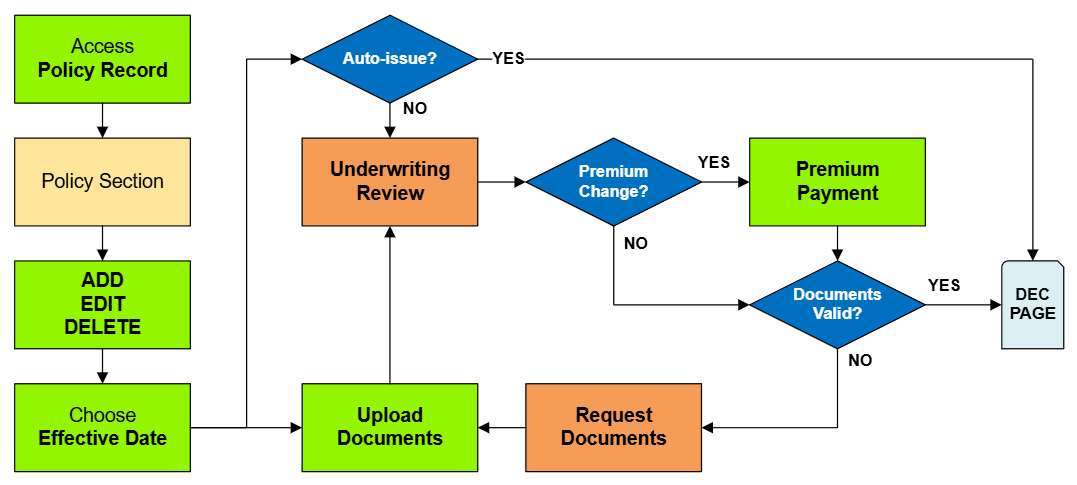
1. Access Policy Record

Open the Policy Record to start
To quickly navigate to the Coverages and Deductibles section:
- Find the Policy Actions block on the right
- Choose Policy Changes
- From the next menu, click the Coverages and Deductibles option
2. Edit Coverage
Use the Edit button (pencil icon) in the upper right of the Coverages and Deductibles section.
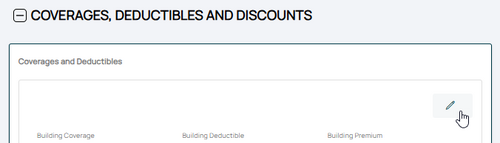
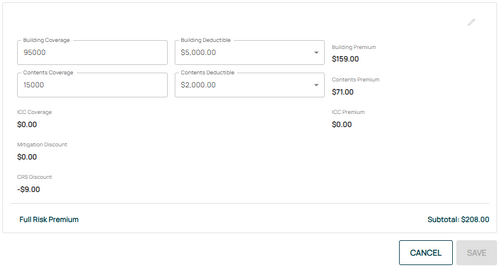
Make adjustments to the coverage and deductibles as appropriate.

This will open the coverage fields for editing.

Make Changes to Coverage and Deductibles
Changes to email address, phone number, and mailing address.
If the mailing address is used to verify Primary Residence, then it cannot be changed until a document has been submitted in its place.
Coverage Change Rules
Once all details are entered, click the "Save" button (move to Step 3 below).
3. Choose Effective Date

Scroll to the top of the page to enter the effective date.
- Enter the appropriate date (see table below).
- Backdating to the inception date is allowed for corrections.
- Choose "None" for the Waiting Period.
The Policy Change cannot be completed without choosing an effective date.
| Change Type | Effective Date Rule |
|---|---|
| Update Contact Details | Date of the request |
| Add Insured Name | Date of the request |
| Update Insured Name | Date of Request or Event |
| Correct Insured Name | Inception |
| Delete Insured Name | Date of Request or Event |
4. Review and Submit
Review the changes for accuracy and completeness before finalizing.

Once the effective date is entered, click the Issue button.
- The "Abort" button will exit without saving any details.

The system will process the change immediately.
- A Declarations page with the updated information will be available in the Documents section of the Policy Record.
- If a Renewal Notice exists and the policy has not expired, then a new Renewal Notice will be sent.
