
Submit Policy Assignment: Difference between revisions
No edit summary |
No edit summary |
||
| Line 1: | Line 1: | ||
{{info-nfip-sfip}}{{eq-proc-agent}} | {{info-nfip-sfip}} | ||
This page outlines the steps an agent will follow in the Equinox system to assign an NFIP policy to a new policyholder or agent of record. | {{eq-proc-agent}} | ||
{{box-summary | |||
|color = orange | |||
|title = | |||
|text = This page outlines the steps an agent will follow in the Equinox system to assign an NFIP policy to a new policyholder or agent of record. A policy assignment transfers the insurable interest of an NFIP policy from one policyholder to another. Required documentation must be completed and available before submitting the assignment. | |||
}} | |||
{{img-proc-nofrm | |||
|file = File:Flow-eq-quote-overview.png | |||
}} | |||
{{lorem}} | |||
{{clear}} | |||
{{collapsible-section | |||
|number = 1 | |||
|title = Step 1: Find the Policy | |||
|content = | |||
Text of the information (edit this).<br> | |||
{{img-proc-frm | |||
|file = File:Img-eq-app-01.png | |||
|width = 600px | |||
}} | |||
Any other text below an image (edit image and this line). | |||
}} | |||
{{collapsible-section | |||
|number = 2 | |||
|title = Step 2: Click "Check Out" | |||
|content = | |||
Text of the information (edit this).<br> | |||
{{img-proc-frm | |||
|file = File:Img-eq-app-01.png | |||
|width = 600px | |||
}} | |||
Any other text below an image (edit image and this line). | |||
}} | |||
{{collapsible-section | |||
|number = 3 | |||
|title = Step 3: Find Billing Information | |||
|content = | |||
Text of the information (edit this).<br> | |||
{{img-proc-frm | |||
|file = File:Img-eq-app-01.png | |||
|width = 600px | |||
}} | |||
Any other text below an image (edit image and this line). | |||
}} | |||
{{collapsible-section | |||
|number = 4 | |||
|title = Step 4: Update Billing Information | |||
|content = | |||
Text of the information (edit this).<br> | |||
{{img-proc-frm | |||
|file = File:Img-eq-app-01.png | |||
|width = 600px | |||
}} | |||
Any other text below an image (edit image and this line). | |||
}} | |||
{{collapsible-section | |||
|number = 5 | |||
|title = Step 5: Complete the Update | |||
|content = | |||
Text of the information (edit this).<br> | |||
{{img-proc-frm | |||
|file = File:Img-eq-app-01.png | |||
|width = 600px | |||
}} | |||
Any other text below an image (edit image and this line). | |||
}} | |||
== Steps to Submit Policy Assignment == | == Steps to Submit Policy Assignment == | ||
Revision as of 14:06, 16 December 2024


This page outlines the steps an agent will follow in the Equinox system to assign an NFIP policy to a new policyholder or agent of record. A policy assignment transfers the insurable interest of an NFIP policy from one policyholder to another. Required documentation must be completed and available before submitting the assignment.
|
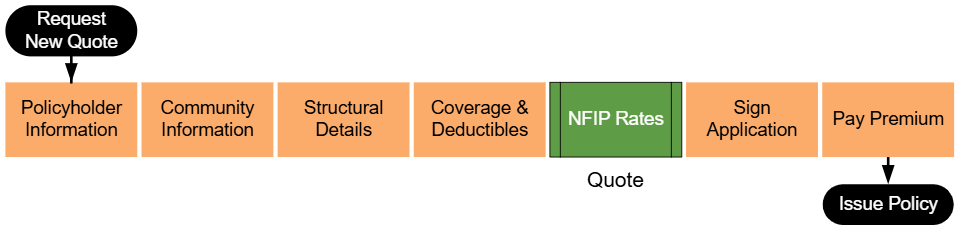
Lorem ipsum dolor sit amet, consectetur adipiscing elit, sed do eiusmod tempor incididunt ut labore et dolore magna aliqua. Ut enim ad minim veniam, quis nostrud exercitation ullamco laboris nisi ut aliquip ex ea commodo consequat. Duis aute irure dolor in reprehenderit in voluptate velit esse cillum dolore eu fugiat nulla pariatur. Excepteur sint occaecat cupidatat non proident, sunt in culpa qui officia deserunt mollit anim id est laborum.
Step 1: Find the Policy
Text of the information (edit this).
 Any other text below an image (edit image and this line).
Step 2: Click "Check Out"
Text of the information (edit this).
Any other text below an image (edit image and this line).
Step 3: Find Billing Information
Text of the information (edit this).
Any other text below an image (edit image and this line).
Step 4: Update Billing Information
Text of the information (edit this).
Any other text below an image (edit image and this line).
Step 5: Complete the Update
Text of the information (edit this).
Any other text below an image (edit image and this line).
Steps to Submit Policy Assignment
- Log in to the Equinox system and locate the policy to be assigned.
- Use the search bar to find the policy by number, address, or current policyholder name.
- Confirm that the policy is eligible for assignment (e.g., active or recently expired status).
- Select the Assignment tab or menu option for the policy.
- Click the Submit Policy Assignment button to begin the process.
- If the button is not visible, verify that the policy meets eligibility requirements.
- Enter the details for the new policyholder:
- Policyholder Name: Full legal name of the new policyholder.
- Contact Information: Email, phone number, and mailing address.
- Effective Date of Assignment: Ensure the date reflects when the assignment takes effect.
- Attach required documentation:
- Proof of Transfer: Legal documents showing transfer of insurable interest (e.g., deed, closing documents).
- Signed Assignment Form: Completed and signed by the current and new policyholders.
- Review the information and attached documents for accuracy.
- Submit the policy assignment.
- A confirmation message will appear with an assignment reference number.
- Notify the new policyholder and agent of record (if applicable).
Common Issues
- Missing or incomplete documentation.
- Ensure the proof of transfer and assignment form are valid and fully executed.
- Assignment effective date conflicts.
- Verify the effective date aligns with policy terms and NFIP guidelines.
- Policy status errors.
- Confirm the policy's eligibility before submission.
Additional Resources
- Policy Assignment Documentation Requirements
- Eligibility for Policy Assignment
- How to Correct Errors in Submitted Assignments
