
Policy Actions: Difference between revisions
No edit summary |
No edit summary |
||
| Line 8: | Line 8: | ||
== 1. Policy Changes == | == 1. Policy Changes == | ||
Submit changes to a policy, such as coverage adjustments or insured details. | Submit changes to a policy, such as coverage adjustments or insured details. | ||
[[File:Img-proc-change-mtg.png|thumb]] | |||
'''Key Steps''': | |||
* Access the Policy Record. | * Access the Policy Record. | ||
* Select the '''Edit Policy''' option. | * Select the '''Edit Policy''' option. | ||
Revision as of 10:28, 27 February 2025
The Policy Actions widget on the Policy Record page provides a list of tasks agents can perform to manage policies. Each action simplifies the maintenance of accurate and up-to-date policy records.
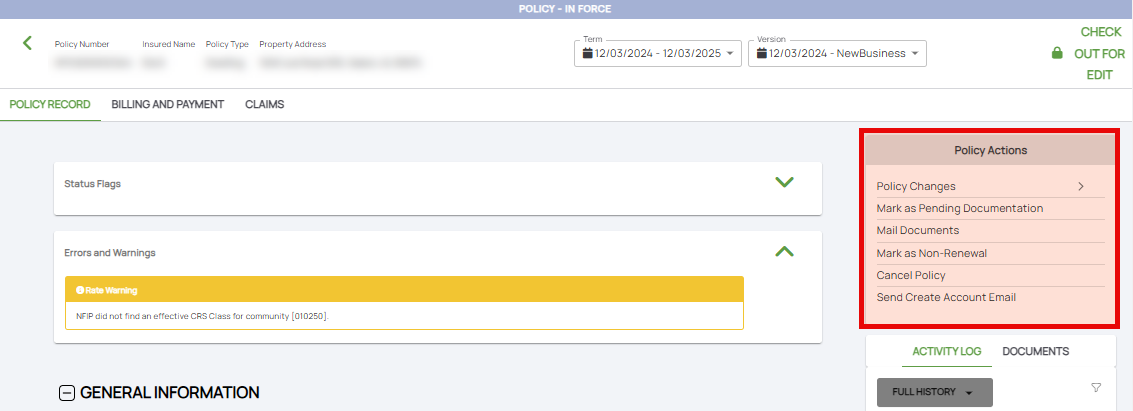
1. Policy Changes
Submit changes to a policy, such as coverage adjustments or insured details.

Key Steps:
- Access the Policy Record.
- Select the Edit Policy option.
- Enter the desired changes and review for accuracy.
- Submit the changes for auto-issuance (Green Path) or underwriter review (Yellow Path).
2. Mark as Pending Documentation
Mark a policy for additional documentation when key details are missing.
Key Steps:
- Open the policy.
- Navigate to the Documents tab.
- Flag the policy as Pending Documentation and note required items.
3. Mail Documents
Send policy-related documents to policyholders, agents, or third parties.
Key Steps:
- Go to the Documents section of the Policy Record.
- Select the documents to send.
- Use the built-in mailing tool to complete the action.
4. Report Claim
Initiate a claim on behalf of a policyholder.
Key Steps:
- Access the Claims tab of the Policy Record.
- Select Report Claim and fill in required details.
- Submit the claim for processing and follow up as needed.
5. Mark as Non-Renewal
Indicate that a policy will not be renewed at the end of its term.
Key Steps:
- Access the Policy Record.
- Select Mark as Non-Renewal and specify the reason.
- Confirm and notify the policyholder.
6. Cancel Policy
Cancel an active policy due to non-payment, request, or other reasons.
Key Steps:
- Open the Policy Record.
- Navigate to Cancel Policy and complete the required details.
- Submit for review or finalization.
7. Send Create Account Email
Assist policyholders in setting up their Consumer Portal accounts.
Key Steps:
- Go to the policyholder’s contact details.
- Select Send Create Account Email.
- Ensure the policyholder receives and completes the registration.