
Premium Payment: Difference between revisions
| Line 10: | Line 10: | ||
To make a premium payment, follow these steps.<br> | To make a premium payment, follow these steps.<br> | ||
''This process is different for policyholders who make a payment through the [[Consumer Portal]].'' | ''This process is different for policyholders who make a payment through the [[Consumer Portal]].'' | ||
=== Credit Card or E-check === | |||
Payments can be made using a '''credit card''' or an '''electronic check''' (e-check or echeck).<br> | Payments can be made using a '''credit card''' or an '''electronic check''' (e-check or echeck).<br> | ||
Select the corresponding box for each at the top of the screen. This will adjust the form fields below. | Select the corresponding box for each at the top of the screen. This will adjust the form fields below. | ||
| Line 25: | Line 25: | ||
}} | }} | ||
<gallery mode="packed | === Billing Information === | ||
<gallery mode="packed" heights="300px" style="text-align:left"> | |||
Img-proc-pay-dialog-card-filled.png|Required fields after they are filled | Img-proc-pay-dialog-card-filled.png|Required fields after they are filled | ||
Img-proc-pay-dialog-change.png|Policy changes allow the user to cancel and return to the policy | Img-proc-pay-dialog-change.png|Policy changes allow the user to cancel and return to the policy | ||
</gallery> | </gallery> | ||
Revision as of 10:19, 5 March 2025
Premium payments are easy to make in Equinox, and they can be initiated a number of ways.
- Pay NFIP New Business - submit payment for a completed NFIP application
- Pay NFIP Renewal - provide payment to renew an upcoming NFIP policy term
- Pay NFIP Policy Change - make additional premium payments for NFIP policy changes
No additional fees are added to premium payments.
How to Submit Premium Payments
To make a premium payment, follow these steps.
This process is different for policyholders who make a payment through the Consumer Portal.
Credit Card or E-check
Payments can be made using a credit card or an electronic check (e-check or echeck).
Select the corresponding box for each at the top of the screen. This will adjust the form fields below.
-
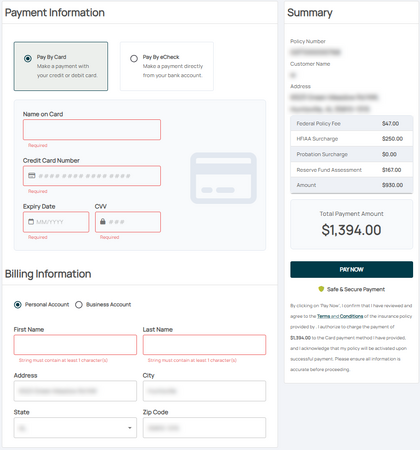 Credit card option.
Required fields are outlined in red. -
 Electronic check option.
Required fields are outlined in red.


| Important |
Electronic checks confirm the account number twice. Use this WikiHow article to discover where it is located on a check.
|
Billing Information
-
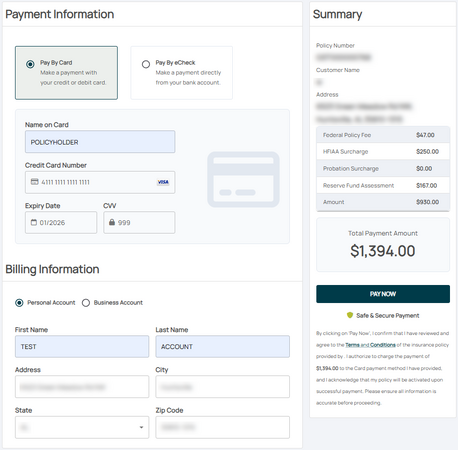 Required fields after they are filled
 -
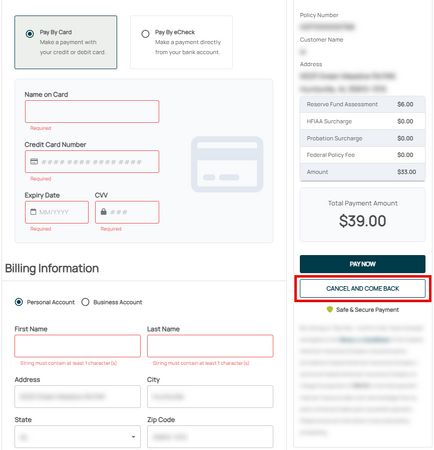 Policy changes allow the user to cancel and return to the policy

