This procedure explains how agents can request a change to the insured details on an NFIP policy. These changes can include contact details, adding co-insureds or additional insureds, or making changes to the names.
Types of Insured Name Changes
Type
Description
Required Documentation
Effective Date Rule
Name Correction
The insurable interest does not change, but the policyholder’s name is incorrect.
Signed policyholder request for correction.
Effective from the inception date of the current term.
Adding a Name
An additional policyholder is being added to the policy.
Existing policyholder’s signed authorization for addition.
Effective from the date of request.
Removing a Name
An existing name is being removed, which may affect insurable interest.
The signature of the policyholder that is being removed is required. In the case of a death or divorce, a death certificate or the divorce decree may be used in lieu of the signature.
Effective from the date of request.
Policy Assignment
Transferring insurable interest to a new policyholder and removing the current one.
The change form/endorsemnt must be signed by the seller on or before the closing date. If the prior owner used the property as their primary residence, the new owner must provide primary residence documentation.
Effective from the date of transfer.
Updating a Name
The policyholder’s name is updated due to legal reasons (e.g., marriage, divorce).
A copy of the marriage certificate, divorce decree or other document substanciating the change of the insured name is required.
Effective from the date of legal change.
Procedural Steps
1. Access Policy Record
Use the "Policy Changes" menu along the right side of the page.
From the next menu, click the Policyholder or Co-insured option
Otherwise, scroll down to the Policyholder section manually.
2. Add, Edit, Delete
Add Insured
After selecting the Add Insured button, choose either a co-insured or an additional insured.
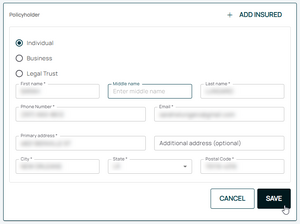
When adding a new insured (co-insured or additional insured), click the "Add Insured" button in the upper right of the Policyholder section.
Select "Individual", "Business", or "Legal Trust"
Enter the contact details in the fields below.
All starred fields are required.
Click the "Save" button after all details are entered and move to Step 3 below.
Edit Insured
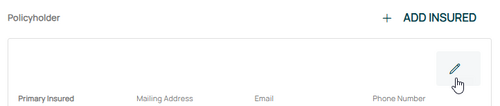
Use the Edit button (pencil icon) in the upper right of the Policyholder section.
This will open the Renewal Billing Instructions fields for editing.
Make the appropriate entries to the policyholder details as needed.
Contact Details
If the lender (mortgagee) required the NFIP policy as a condition to a loan, then select the "Yes" radio button.
Insured Name Update
Choose the radio button to make changes to the payor. Once all details are entered, click the "Save" button (move to Step 3 below).
Insured Name Correction
Choose the radio button to make changes to the payor.
Once all details are entered, click the "Save" button (move to Step 3 below).
Delete Insured
3. Choose Effective Date
Choose the correct effective date for the policy change
Scroll to the top of the page to enter the effective date.