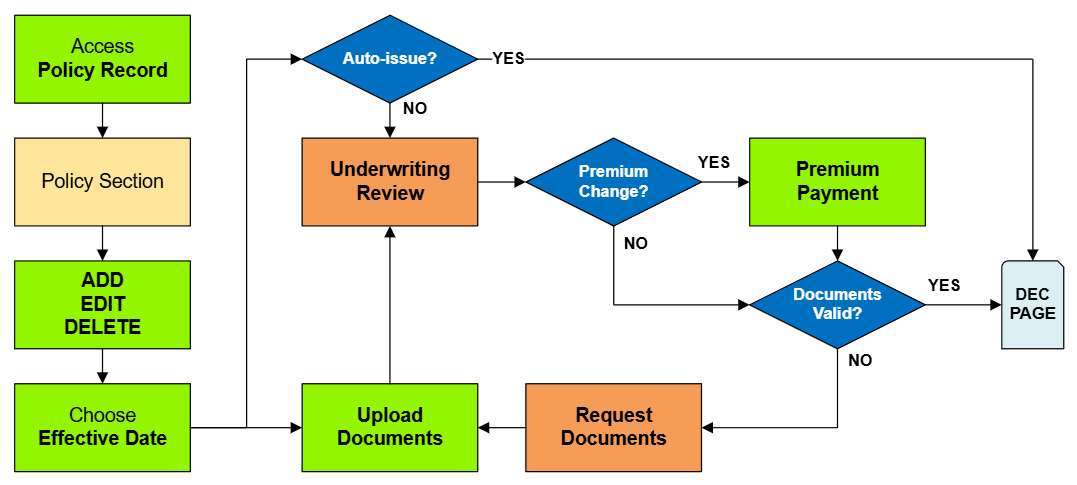
This procedure explains how agents can submit requests to change or correct the building details on an NFIP policy. Most structural variables determine policy rating, so premium may be impacted. Supporting documentation may be required.
Scroll down to the "Risk Characteristics" section manually.
There is no navigation option in the Policy Actions menu.
2. Edit Risk Characteristics
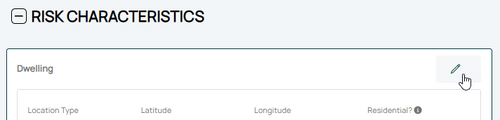
Use the Edit button (pencil icon) in the upper right of the Risk Characteristics section.
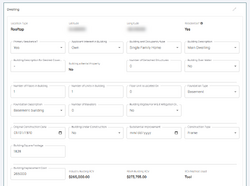
This will open all NFIP structural variable fields for editing.
The NFIP Structural Variables fields will all be open for editing.
Make Adjustments to Structural Variables
These fields describe the physical details of the building, which can be changed over time due to reconstruction or disrepair. They should be accurately represented on an NFIP policy; they can be corrected if they are not.
Required Documentation:Changes: proof of a change to the building, such as a photograph.
Required Documentation:Corrections: an agent statement that the item was incorrect on the original application.
Changes: the effective date is the date the change occurred (the event date). Corrections: the effective date is the policy inception date.
Once all details are entered, click the "Save" button (move to Step 3 below).
3. Choose Effective Date
Scroll to the top of the page to enter the effective date.
Choose the Waiting Period based on the scenarios identified in Section 2.
Calculate and enter the appropriate date.
The Coverage Change cannot be completed without choosing an effective date.
4. Review and Submit
Review the changes for accuracy and completeness before finalizing.
Once the effective date is entered, the pro-rated premium amount will be displayed.
The "Abort" button will exit the process without saving any details.
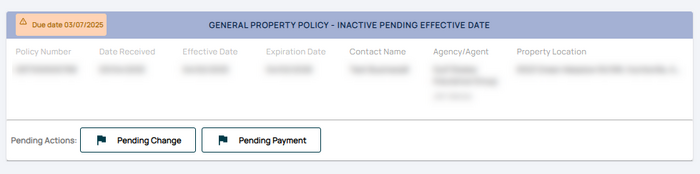
The "Submit" button will create the policy change form and mark the policy with "Pending Change" and "Pending Payment" flags.
The system will not process the change immediately.
The Policy Record will show Pending Payment and Pending Change flags.
The policy in the Agency Workspace will show Pending Payment and Pending Change flags.







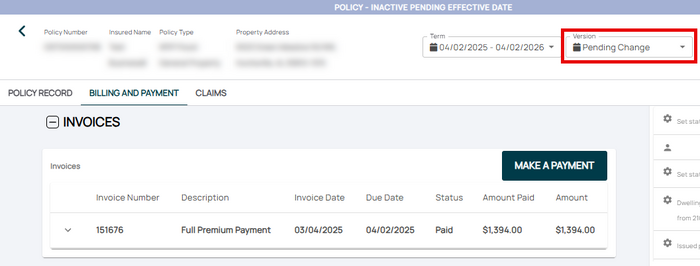 The agent can submit a payment on the Billing and Payment page.


