
Create NFIP Application



Overview
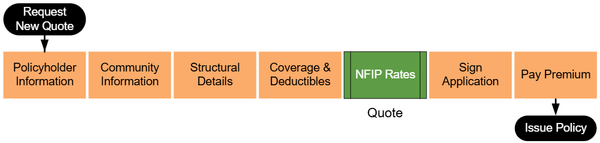
An agent must complete several steps to produce an NFIP application or get a quote. Equinox follows the workflow shown below. Quotes are available at the "NFIP Rates" step shown in green.
Request New Quote
To quote a property with the NFIP, start in the Agency Workspace and select the "Request New Quote" button near the top of the page.

Property Address
Enter the property address. A verified address should show from the first dropdown window.
Choose "NFIP Flood" from the second drop down window.

For property address issues, consult the Application Reference.
Step 1: Basic Information
After assigning the property address, the policy effective date and insured details must be entered.
Effective Date
NFIP quotes are made in real time and rates are subject to change. All quotes must follow the NFIP waiting period rules assigned to new policies. For more information about each waiting period rule and how to calculate the application effective date, refer to the Effective Date Calculator.

Insured Details
The policyholder should be identified as an individual or a legal entity, such as a trust. An additional co-insured can be added by clicking the slider option below the Insured Email Address.
Step 2: Third Party Data
The Third Party Data step pre-populates essential property details from public records. Agents should review all data for accuracy and manually input any missing information.

Review Pre-Populated Data:
- Ensure accuracy for all fields. For a detailed explanation of each field, see the Application Reference.
Enter Missing Information:
- Manually complete any fields not pre-populated.
Edit Incorrect Data:
- Update fields if inaccuracies are found and note discrepancies for follow-up.
Step 3: Property Information
The Property Information step collects essential details about the property's use and occupancy. Agents must manually enter all required fields, ensuring accuracy and completeness.
For a detailed explanation of each field, refer to Application Reference.
Step 4: Building Type
The Building Type step allows agents to select the building's occupancy type and description. This step uses a button-based interface to simplify the process.
For a detailed explanation of each occupancy type and building description, refer to the Application Reference.
Step 5: Foundation Type
The Foundation Type step uses a series of radio buttons to help agents select the correct foundation type for the building. Clicking on a radio button displays images of foundation types, which can be clicked to finalize the selection.
Agents must also answer a single question about the number of elevators in the building.
For more details about foundation types and related considerations, refer to the relevant subpage in the Application Reference.
Step 6: Elevation Certificate Information
The Elevation Certificate Information step requires agents to manually enter key details from the Elevation Certificate (EC).
Agents must:
- Select the building diagram number from a dropdown menu.
- Identify the section of the EC (C, E, or H) where measurements are recorded.
- Enter the EC signature date.
The system will automatically determine if the residence is eligible for floodproofing based on community details.
For further guidance on using elevation certificates, refer to the relevant subpage in the Application Reference.
Step 7: Qualifying Questions
Lorem ipsum dolor sit amet, consectetur adipiscing elit, sed do eiusmod tempor incididunt ut labore et dolore magna aliqua. Ut enim ad minim veniam, quis nostrud exercitation ullamco laboris nisi ut aliquip ex ea commodo consequat. Duis aute irure dolor in reprehenderit in voluptate velit esse cillum dolore eu fugiat nulla pariatur. Excepteur sint occaecat cupidatat non proident, sunt in culpa qui officia deserunt mollit anim id est laborum.
Step 8: Coverage, Deductibles & Discounts
Lorem ipsum dolor sit amet, consectetur adipiscing elit, sed do eiusmod tempor incididunt ut labore et dolore magna aliqua. Ut enim ad minim veniam, quis nostrud exercitation ullamco laboris nisi ut aliquip ex ea commodo consequat. Duis aute irure dolor in reprehenderit in voluptate velit esse cillum dolore eu fugiat nulla pariatur. Excepteur sint occaecat cupidatat non proident, sunt in culpa qui officia deserunt mollit anim id est laborum.
Step 9: Rates
Lorem ipsum dolor sit amet, consectetur adipiscing elit, sed do eiusmod tempor incididunt ut labore et dolore magna aliqua. Ut enim ad minim veniam, quis nostrud exercitation ullamco laboris nisi ut aliquip ex ea commodo consequat. Duis aute irure dolor in reprehenderit in voluptate velit esse cillum dolore eu fugiat nulla pariatur. Excepteur sint occaecat cupidatat non proident, sunt in culpa qui officia deserunt mollit anim id est laborum.